Developer Guide
Table of Contents
- Acknowledgements
- Setting up, getting started
- Design
- Implementation
- Documentation, logging, testing, configuration, dev-ops
- Appendix: Requirements
- Appendix: Instructions for manual testing
- Appendix: Effort
- Appendix: Planned Enhancements
Acknowledgements
- This project is based on the AddressBook-Level3 project created by the SE-EDU initiative.
- Libraries used: JavaFX, Jackson, JUnit5
- AI-assisted development tools (such as GitHub Copilot, Gemini, and Claude) were used by the team as productivity aids for writing boilerplate code, auto-completing logic, and troubleshooting bugs throughout the development of this project.
Setting up, getting started
Refer to the guide Setting up and getting started.
Design
 Tip: The
 .puml diagram source files are in the docs/diagrams folder. Refer to the PlantUML Tutorial at se-edu/guides to learn how to create and edit diagrams.
Architecture
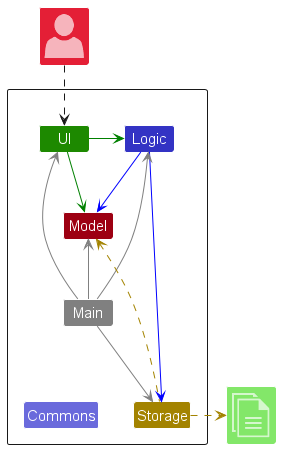
The Architecture Diagram given above explains the high-level design of the App.
Given below is a quick overview of main components and how they interact with each other.
Main components of the architecture
Main (consisting of classes Main and MainApp) is in charge of the app launch and shut down.
- At app launch, it initializes the other components in the correct sequence, and connects them up with each other.
- At shut down, it shuts down the other components and invokes cleanup methods where necessary.
The bulk of the app’s work is done by the following four components:
-
UI: The UI of the App. -
Logic: The command executor. -
Model: Holds the data of the App in memory. -
Storage: Reads data from, and writes data to, the hard disk.
Commons represents a collection of classes used by multiple other components.
How the architecture components interact with each other
The Sequence Diagram below shows how the components interact with each other for the scenario where the user issues the command delete 1.
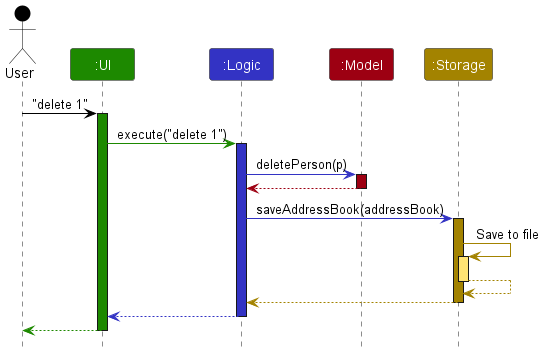
Each of the four main components (also shown in the diagram above),
- defines its API in an
interfacewith the same name as the Component. - implements its functionality using a concrete
{Component Name}Managerclass (which follows the corresponding APIinterfacementioned in the previous point.
For example, the Logic component defines its API in the Logic.java interface and implements its functionality using the LogicManager.java class which follows the Logic interface. Other components interact with a given component through its interface rather than the concrete class (reason: to prevent outside component’s being coupled to the implementation of a component), as illustrated in the (partial) class diagram below.
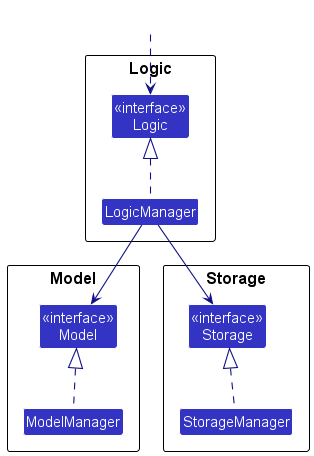
The sections below give more details of each component.
UI component
The API of this component is specified in Ui.java
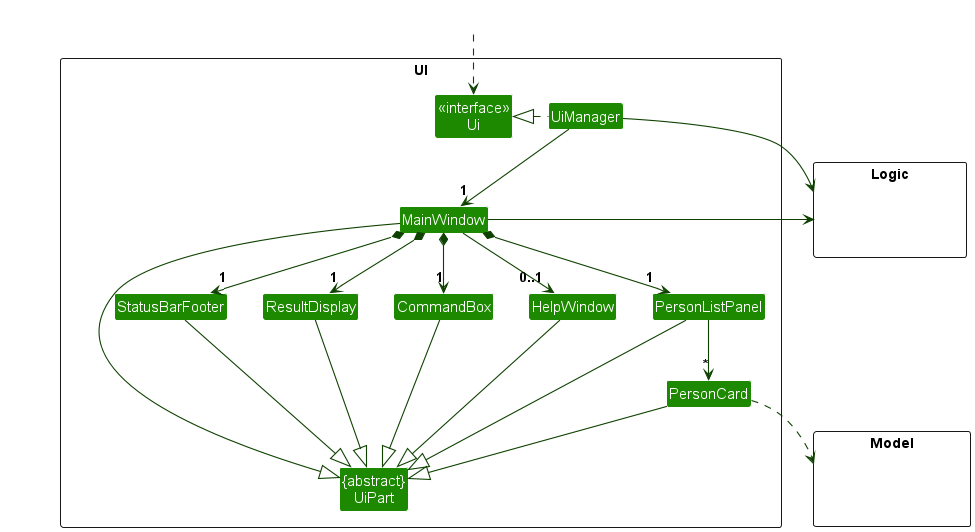
The UI consists of a MainWindow that is made up of parts e.g.CommandBox, ResultDisplay, PersonListPanel, MeetingListPanel, ContactDetailPanel, MeetingDetailPanel, StatusBarFooter etc. All these, including the MainWindow, inherit from the abstract UiPart class which captures the commonalities between classes that represent parts of the visible GUI.
The UI component uses the JavaFx UI framework. The layout of these UI parts are defined in matching .fxml files that are in the src/main/resources/view folder. For example, the layout of the MainWindow is specified in MainWindow.fxml
The UI component,
- executes user commands using the
Logiccomponent. - listens for changes to
Modeldata so that the UI can be updated with the modified data. - keeps a reference to the
Logiccomponent, because theUIrelies on theLogicto execute commands. - depends on some classes in the
Modelcomponent, as it displaysPersonandMeetingobjects residing in theModel.
CommandBox and autocomplete
CommandBox wraps a JavaFX TextField and manages a Popup overlay for command autocompletion. The key internal members are:
-
autocompletePopup— aPopupthat appears directly below the command field. -
suggestionListView— aListView<CommandSuggestion>inside the popup; each cell renders asmatchKey - description. -
skipNextTextFieldAction— set totrueafter a template is inserted so the nextonActionevent from theTextFielddoes not execute the template text as a command. -
applyingAutocompleteTemplate— set totrueduringsetTextcalls made by the autocomplete system, preventing the text-change listener from clearingskipNextTextFieldActionprematurely.
Text-change listener: Whenever the text field content changes, updateAutocompletePopup(newText) calls Logic#getCommandAutocompleteSuggestions(String) and either shows the popup (if suggestions exist) or hides it. The popup only appears while the user is still typing the command word — once a space is present, CommandAutocomplete returns an empty list and the popup is hidden.
Key-press filter: handleAutocompleteKeyPress intercepts ↑, ↓, Enter, and Esc while the popup is showing:
-
↑/↓— move selection in the suggestion list. -
Enter(current text matches the selected suggestion’sinsertTextexactly) — hide the popup and execute the command viahandleCommandEntered(). -
Enter(current text does not match) — callapplySelectedSuggestion(true), which inserts the fullinsertTexttemplate into the field and setsskipNextTextFieldAction = trueso the template is not immediately executed as a command. -
Esc— hide the popup without applying a suggestion.
handleCommandEntered: Fired by the FXML onAction binding when the user presses Enter with the popup closed. Checks skipNextTextFieldAction; if true, clears the flag and returns (a template was just inserted and the user still needs to fill it in). Otherwise, passes the command text to commandExecutor.
Logic component
API : Logic.java
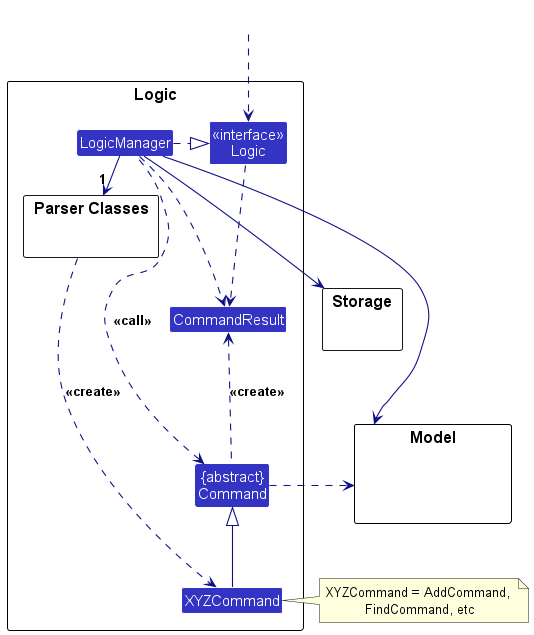
Here’s a (partial) class diagram of the Logic component:
The sequence diagram below illustrates the interactions within the Logic component, taking execute("delete 1") API call as an example.
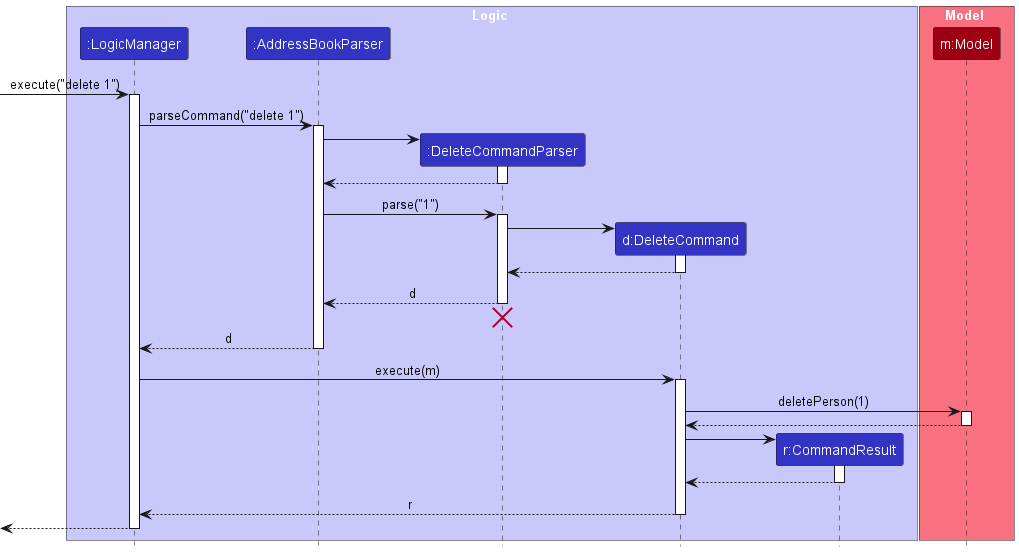
 Note: The lifeline for
 DeleteCommandParser should end at the destroy marker (X) but due to a limitation of PlantUML, the lifeline continues till the end of diagram.
How the Logic component works:
- When
Logicis called upon to execute a command, it is passed to anAddressBookParserobject which in turn creates a parser that matches the command (e.g.,DeleteCommandParser) and uses it to parse the command. - This results in a
Commandobject (more precisely, an object of one of its subclasses e.g.,DeleteCommand) which is executed by theLogicManager. - The command can communicate with the
Modelwhen it is executed (e.g. to delete a person).
Note that although this is shown as a single step in the diagram above (for simplicity), in the code it can take several interactions (between the command object and theModel) to achieve. - The result of the command execution is encapsulated as a
CommandResultobject which is returned back fromLogic.
Here are the other classes in Logic (omitted from the class diagram above) that are used for parsing a user command:
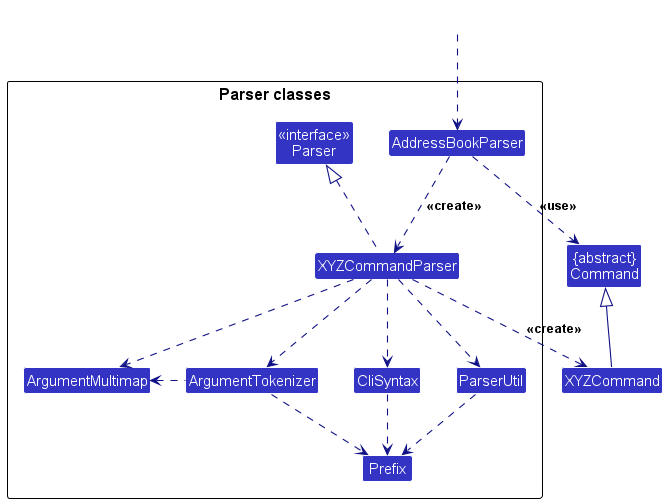
How the parsing works:
- When called upon to parse a user command, the
AddressBookParserclass creates anXYZCommandParser(XYZis a placeholder for the specific command name e.g.,AddCommandParser) which uses the other classes shown above to parse the user command and create aXYZCommandobject (e.g.,AddCommand) which theAddressBookParserreturns back as aCommandobject. - All
XYZCommandParserclasses (e.g.,AddCommandParser,DeleteCommandParser, …) inherit from theParserinterface so that they can be treated similarly where possible e.g, during testing.
Model component
API : Model.java
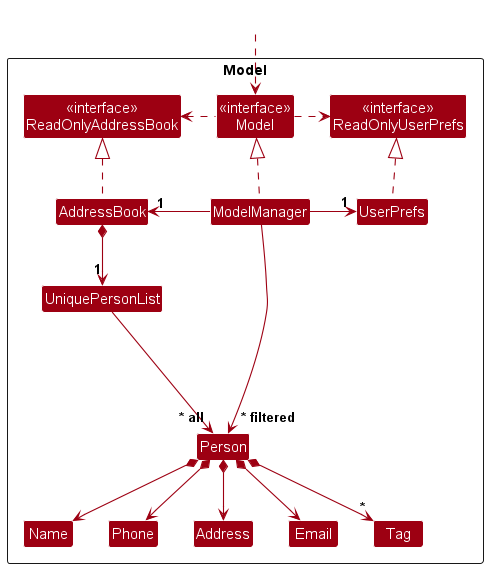
The Model component,
- stores the address book data i.e., all
Personobjects (which are contained in aUniquePersonListobject) and allMeetingobjects (which are contained in aUniqueMeetingListobject). - stores the currently ‘selected’
Personobjects (e.g., results of a search query) as a separate filtered list, which is further wrapped in aSortedListto support ordering (e.g. pinned contacts first, fuzzy score). This combined view is exposed to outsiders as an unmodifiableObservableList<Person>that can be ‘observed’ e.g. the UI can be bound to this list so that the UI automatically updates when the data in the list change. - stores a
UserPrefsobject that represents the user’s preferences. This is exposed to the outside as aReadOnlyUserPrefsobject. - does not depend on any of the other three components (as the
Modelrepresents data entities of the domain, they should make sense on their own without depending on other components)
Note: An alternative (arguably, a more OOP) model is given below. It has a Tag list in the AddressBook, which Person references. This allows AddressBook to only require one Tag object per unique tag, instead of each Person needing their own Tag objects.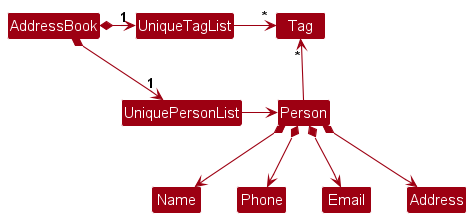
Storage component
API : Storage.java
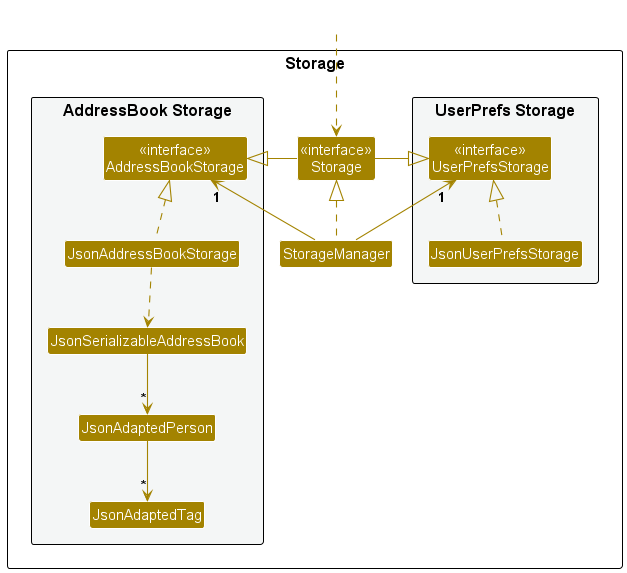
The Storage component,
- can save both address book data and user preference data in JSON format, and read them back into corresponding objects.
- inherits from both
AddressBookStorageandUserPrefsStorage, which means it can be treated as either one (if only the functionality of only one is needed). - depends on some classes in the
Modelcomponent (because theStoragecomponent’s job is to save/retrieve objects that belong to theModel)
Common classes
Classes used by multiple components are in the seedu.address.commons package.
Implementation
This section describes some noteworthy details on how certain features are implemented.
[Proposed] Undo/redo feature
Proposed Implementation
The proposed undo/redo mechanism is facilitated by VersionedAddressBook. It extends AddressBook with an undo/redo history, stored internally as an addressBookStateList and currentStatePointer. Additionally, it implements the following operations:
-
VersionedAddressBook#commit()— Saves the current address book state in its history. -
VersionedAddressBook#undo()— Restores the previous address book state from its history. -
VersionedAddressBook#redo()— Restores a previously undone address book state from its history.
These operations are exposed in the Model interface as Model#commitAddressBook(), Model#undoAddressBook() and Model#redoAddressBook() respectively.
Given below is an example usage scenario and how the undo/redo mechanism behaves at each step.
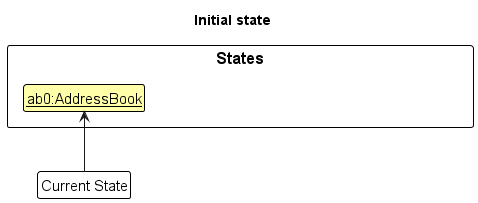
Step 1. The user launches the application for the first time. The VersionedAddressBook will be initialized with the initial address book state, and the currentStatePointer pointing to that single address book state.
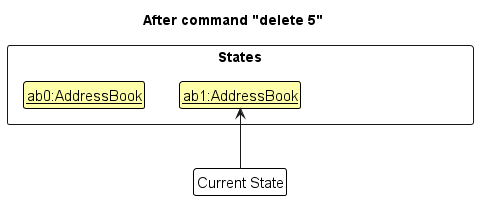
Step 2. The user executes delete 5 command to delete the 5th person in the address book. The delete command calls Model#commitAddressBook(), causing the modified state of the address book after the delete 5 command executes to be saved in the addressBookStateList, and the currentStatePointer is shifted to the newly inserted address book state.
Step 3. The user executes add n/David … to add a new person. The add command also calls Model#commitAddressBook(), causing another modified address book state to be saved into the addressBookStateList.
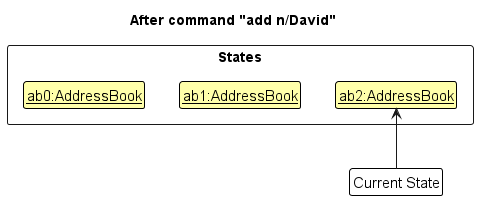
Note: If a command fails its execution, it will not call Model#commitAddressBook(), so the address book state will not be saved into the addressBookStateList.
Step 4. The user now decides that adding the person was a mistake, and decides to undo that action by executing the undo command. The undo command will call Model#undoAddressBook(), which will shift the currentStatePointer once to the left, pointing it to the previous address book state, and restores the address book to that state.
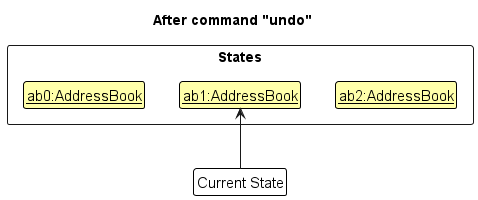
Note: If the currentStatePointer is at index 0, pointing to the initial AddressBook state, then there are no previous AddressBook states to restore. The undo command uses Model#canUndoAddressBook() to check if this is the case. If so, it will return an error to the user rather
than attempting to perform the undo.
The following sequence diagram shows how an undo operation goes through the Logic component:
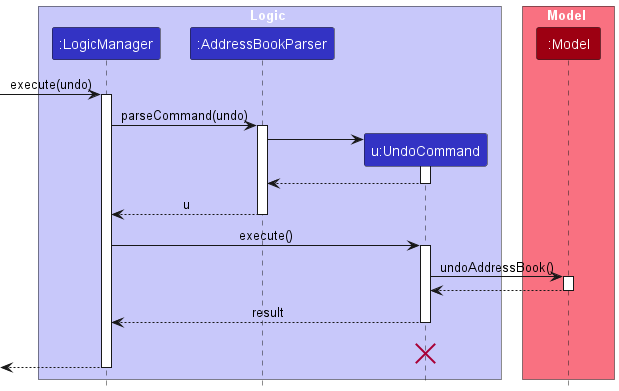
Note: The lifeline for UndoCommand should end at the destroy marker (X) but due to a limitation of PlantUML, the lifeline reaches the end of diagram.
Similarly, how an undo operation goes through the Model component is shown below:
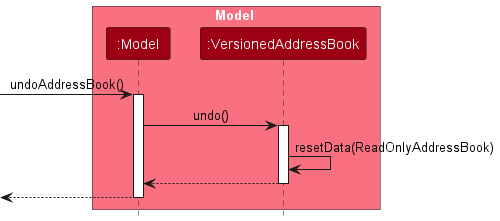
The redo command does the opposite — it calls Model#redoAddressBook(), which shifts the currentStatePointer once to the right, pointing to the previously undone state, and restores the address book to that state.
Note: If the currentStatePointer is at index addressBookStateList.size() - 1, pointing to the latest address book state, then there are no undone AddressBook states to restore. The redo command uses Model#canRedoAddressBook() to check if this is the case. If so, it will return an error to the user rather than attempting to perform the redo.
Step 5. The user then decides to execute the command list. Commands that do not modify the address book, such as list, will usually not call Model#commitAddressBook(), Model#undoAddressBook() or Model#redoAddressBook(). Thus, the addressBookStateList remains unchanged.
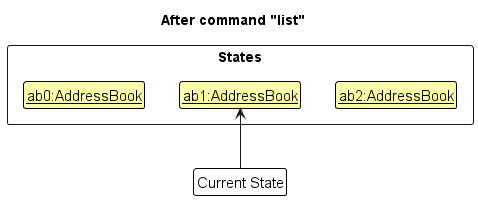
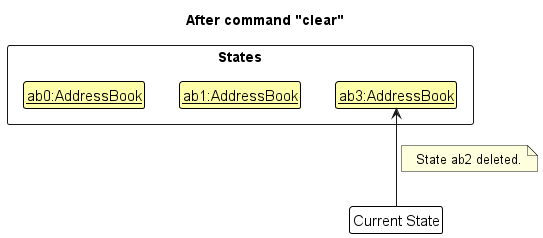
Step 6. The user executes clear, which calls Model#commitAddressBook(). Since the currentStatePointer is not pointing at the end of the addressBookStateList, all address book states after the currentStatePointer will be purged. Reason: It no longer makes sense to redo the add n/David … command. This is the behavior that most modern desktop applications follow.
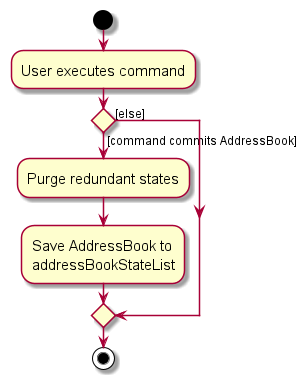
The following activity diagram summarizes what happens when a user executes a new command:
Design considerations:
Aspect: How undo & redo executes:
-
Alternative 1 (current choice): Saves the entire address book.
- Pros: Easy to implement.
- Cons: May have performance issues in terms of memory usage.
-
Alternative 2: Individual command knows how to undo/redo by
itself.
- Pros: Will use less memory (e.g. for
delete, just save the person being deleted). - Cons: We must ensure that the implementation of each individual command are correct.
- Pros: Will use less memory (e.g. for
Import and Export feature
Overview
The import/export feature allows users to save all contacts to a JSON file (export) and load contacts from a JSON file into the current address book (import). This enables data transfer between machines and simple backup/restore workflows.
Design
Both ExportCommand and ImportCommand need access to the Storage component to read/write JSON files, but the standard Command#execute(Model) signature only provides a Model. To solve this without breaking the existing architecture, we introduce a StorageCommand abstract class:
-
StorageCommandextendsCommandand declares an abstractexecute(Model, Storage)method. - It overrides
execute(Model)to throw aCommandException, preventing accidental invocation through the wrong dispatch path. - It provides a
shouldAutoSaveAddressBook()hook (defaulttrue) thatLogicManagerchecks after execution.ExportCommandoverrides this to returnfalsebecause exporting does not mutate the model and should not trigger a redundant save of the main data file.
LogicManager#execute(String) is updated to detect StorageCommand instances and call the two-argument execute(Model, Storage) instead of the standard execute(Model).
Import flow
-
AddressBookParserrecognises theimportkeyword and delegates toImportCommandParser. -
ImportCommandParserextracts thefp/prefix and creates anImportCommandwith the parsedPath. -
LogicManagerdetectsImportCommandis aStorageCommandand callsexecute(model, storage). -
ImportCommand.executeproceeds in three steps (following the Single Level of Abstraction Principle):-
validateFileIsReadable()— checks the file exists, is a regular file, and is readable. -
loadAddressBook(storage)— delegates tostorage.readAddressBook(path)to deserialize the JSON. -
mergeIntoModel(model, imported)— iterates over imported persons, adding those that do not already exist (checked viamodel.hasPerson()) and counting skipped duplicates.
-
-
LogicManagerauto-saves the updated address book to the default path.
Export flow
-
AddressBookParserrecognises theexportkeyword and delegates toExportCommandParser. -
ExportCommandParserextracts thefp/prefix and creates anExportCommandwith the parsedPath. -
LogicManagerdetectsExportCommandis aStorageCommandand callsexecute(model, storage). -
ExportCommand.executecallsstorage.saveAddressBook(model.getAddressBook(), targetFilePath). - Because
shouldAutoSaveAddressBook()returnsfalse,LogicManagerskips the default auto-save.Pin feature
Implementation
The pin feature allows users to pin up to 3 contacts to the top of the displayed list. It is implemented as a toggle command — running pin INDEX on an unpinned contact pins it, and running it again unpins it.
Model changes:
Person has a boolean pinned field (default false) with an isPinned() getter. This field follows the same pattern as profilePicturePath — it is excluded from equals()/hashCode()/toString() because pin status is UI metadata, not part of a person’s identity. This design avoids breaking existing tests.
JsonAdaptedPerson serializes the pinned field with a backward-compatible default of false for older data files.
ModelManager wraps its FilteredList<Person> with a SortedList<Person> using a comparator that places pinned contacts first. The getFilteredPersonList() method returns the sorted view.
Command flow:
-
AddressBookParserrecognisespinand delegates toPinCommandParser. -
PinCommandParserextracts and validates the index. -
PinCommand#execute()toggles the pin status:- If unpinned → checks the 3-pin limit → creates a new
Personwithpinned = true→ callsmodel.setPerson(). - If already pinned → creates a new
Personwithpinned = false→ callsmodel.setPerson().
- If unpinned → checks the 3-pin limit → creates a new
- The
SortedListinModelManagerautomatically re-sorts the list.
UI changes:
PersonListCard.fxml has a 📌 Label (fx:id pinIcon) at the top-left of the avatar. PersonCard.java sets its visibility based on person.isPinned().
Design considerations
Aspect: Separate pinned list vs boolean field on Person
-
Alternative 1 (current choice): Boolean
pinnedfield onPerson.- Pros: Persists automatically through existing JSON serialization. No sync issues. Minimal code.
- Cons: Slightly increases the
Personclass.
-
Alternative 2: Separate list of pinned person IDs.
- Pros: Keeps
Personunchanged. - Cons: Needs a new data structure, sync logic, and storage changes. More code, more bugs.
- Pros: Keeps
Aspect: Toggle vs separate pin/unpin commands
-
Alternative 1 (current choice): Single
pincommand that toggles.- Pros: Fewer classes (1 command + 1 parser instead of 2+2). Simpler UX.
- Cons: Less explicit — user must know the current state.
-
Alternative 2: Separate
pinandunpincommands.- Pros: More explicit.
- Cons: More code for no real benefit.
Sort feature
Implementation
The sort feature allows users to sort the contact list by first name, last name, or recent addition, in ascending or descending order. It works alongside the pin feature — pinned contacts always remain at the top.
SortCommand accepts a SortField (FIRSTNAME, LASTNAME, or RECENT) and an isAscending boolean. On execution, it builds a composite comparator:
-
Primary: Pinned contacts first (
!isPinned()— false sorts before true). - Secondary: The user-specified field sort.
For name extraction from Name.fullName:
-
FIRSTNAME= first word (split("\\s+")[0]) -
LASTNAME= last word (split("\\s+")[last])
For RECENT:
- Sorts by the internal list index, representing the order in which the contacts were added or imported into the address book.
- An
isAscendingvalue oftrue(i.e.ASC) results in oldest contacts appearing first, whilefalse(i.e.DESC) reverses the order so newest contacts appear first.
The comparator is applied via model.updateSortComparator(comparator), which calls SortedList#setComparator() in ModelManager. This uses the existing SortedList infrastructure introduced by the pin feature — no new data structures needed.
SortCommandParser parses the two-argument format (sort CONDITION ORDER) case-insensitively.
Design considerations
Aspect: Sort mechanism
-
Alternative 1 (current choice): Update the
SortedListcomparator dynamically.- Pros: Reuses the existing
SortedListfrom the pin feature. No new data structures. The sort is a view-level operation — the underlying data order is unchanged. - Cons: Sort is non-persistent (resets on restart). This is acceptable because sort is a display preference, not data.
- Pros: Reuses the existing
-
Alternative 2: Physically reorder the
UniquePersonList.- Pros: Sort persists.
- Cons: Destructive — changes the data model. Harder to undo.
Password protection feature
Implementation
Password protection is implemented across four layers: Model/UserPrefs (storage), Logic (persistence), Logic commands (set/remove), and MainApp (startup enforcement).
Password storage
The password hash is stored as a new passwordHash field in UserPrefs, which is already serialized to preferences.json by Jackson. No separate file is needed.
ReadOnlyUserPrefs exposes getPasswordHash() read-only. Model and ModelManager expose getPasswordHash() / setPasswordHash(String) so commands can update it.
Hashing
SecurityUtil (in commons.util) provides two static methods:
-
hashPassword(String) → String— SHA-256 hash of the password, returned as a 64-character lowercase hex string. -
verifyPassword(String, String) → boolean— hashes the candidate and compares to the stored hash.
The plaintext password is never stored anywhere.
Commands
| Command | Class | Behaviour |
|---|---|---|
setpassword pw/PASSWORD |
SetPasswordCommand |
Hashes the password via SecurityUtil and calls model.setPasswordHash(hash)
|
removepassword |
RemovePasswordCommand |
Calls model.setPasswordHash(null); returns a distinct message if no password was set |
SetPasswordCommandParser extracts the pw/ prefix, trims whitespace, and rejects empty values.
Outcome matrix:
| User action | Result |
|---|---|
| Correct password | App opens normally |
| Cancel dialog |
Platform.exit() — app closes, no data wiped |
| 3 wrong entries |
eraseAllData() — contacts cleared, hash set to null, both files saved |
Limitations
-
Local Storage Vulnerability: Because CampusLink is a local desktop application without a remote authentication server, the password hash is stored locally in the
preferences.jsonfile. A user with direct file system access can bypass the password protection by openingpreferences.jsonand deleting or clearing thepasswordHashfield. This feature is intended to prevent casual snooping when the app is launched rather than secure the data against a malicious user with local file system access.
Follow-up reminder feature
Overview
The follow-up reminder feature lets users attach a short note to a contact indicating what they need to do next. Every time the app opens, any contacts that have a non-empty follow-up note are listed in the result display automatically, so the user sees their outstanding reminders before typing any command.
Two commands are provided:
| Command | Syntax | Effect |
|---|---|---|
followup |
followup INDEX f/NOTE |
Sets (or replaces) the follow-up note on the contact at INDEX
|
clearfollowup |
clearfollowup INDEX |
Removes the follow-up note from the contact at INDEX
|
Implementation
Model layer
A FollowUp value class is added to seedu.address.model.person, following the same pattern as Address and Email:
-
FollowUp#value— the note text (empty string represents “no reminder”). -
FollowUp.EMPTY— shared sentinel for the no-reminder state, avoiding repeatednew FollowUp("")calls. -
FollowUp#isValidFollowUp(String)— accepts either empty (no reminder) or any string not starting with whitespace. -
Persongains afollowUpfield in its overloaded constructors; constructors that do not receive a follow-up note delegate to the full constructor and default toFollowUp.EMPTY. -
Person#equals,hashCode, andtoStringare updated to include thefollowUpfield.
Storage layer
JsonAdaptedPerson adds a followUp JSON property.
In JsonAdaptedPerson(Person source) it is written from source.getFollowUp().value.
In toModelType(), a null or missing followUp field defaults to FollowUp.EMPTY (backward-compatible with existing data files that predate this feature).
Logic layer — commands and parsers
FollowUpCommandParser tokenizes the input using ArgumentTokenizer with PREFIX_FOLLOW_UP (f/), validates that both the preamble (index) and the f/ value are present, then constructs a FollowUpCommand.
FollowUpCommand#execute looks up the person by index, rebuilds a Person with the new FollowUp, and calls model.setPerson(original, edited). The address book is auto-saved by LogicManager as usual.
ClearFollowUpCommandParser and ClearFollowUpCommand mirror the DeleteCommandParser / DeleteCommand pattern. ClearFollowUpCommand#execute rejects a clear attempt when the contact already has no follow-up, to give meaningful feedback to the user.
Both command words are registered in AddressBookParser alongside the existing commands.
UI layer — startup reminder
At the end of MainWindow#fillInnerParts(), a Platform.runLater call is scheduled to invoke showFollowUpReminders() after the JavaFX scene has finished rendering. This method:
- Calls
logic.getPersonsWithFollowUp(), which queries the full address book (not the filtered list) to ensure no reminders are missed when a filter is active. - If the list is non-empty, formats it as
"Follow-up reminders:\n - <name>: <note>\n - ..."and passes it toresultDisplay.setFeedbackToUser(...). - If the list is empty, does nothing (leaves the result display blank).
Because this runs after ui.start(primaryStage) in MainApp, which is itself called only after a successful password unlock, reminders are never shown before authentication.
Find feature
Implementation
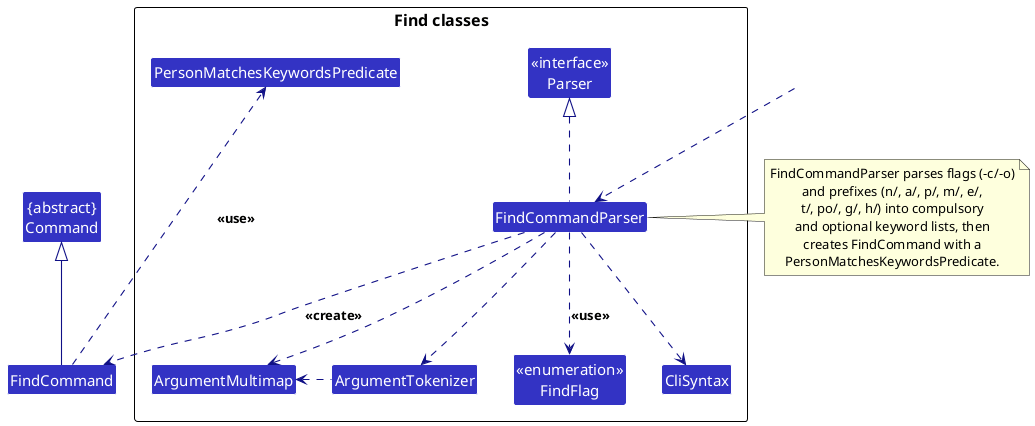
The find feature allows users to filter the contact list by one or more fields using compulsory (-c) and optional (-o) flags. It also supports fuzzy search for the name, phone, address, and email fields, tolerating up to 1 character edit, and automatically sorts results by closeness of match.
The class diagram below shows the key classes involved:
How it works:
-
AddressBookParserrecognises thefindkeyword and delegates toFindCommandParser. -
FindCommandParserusessplitByFindFlagsto split the input into segments, each tagged with aFindFlag(COMPULSORYorOPTIONAL; default isOPTIONAL). - Each segment is tokenised by
ArgumentTokenizerusingCliSyntaxprefixes (n/,a/,p/,m/,e/,t/,po/,g/,h/), and keywords are collected into compulsory and optional lists per field. - A
PersonMatchesKeywordsPredicateis constructed from all keyword lists and passed toFindCommand. -
FindCommand#executecallsmodel.updateFilteredPersonList(predicate)to apply the filter, then callsmodel.updateSortComparatorwith a comparator that ranks pinned contacts first and all other contacts by ascending fuzzy score.
Matching logic (in PersonMatchesKeywordsPredicate):
- A contact passes if all compulsory-field conditions are satisfied and at least one optional-field condition is satisfied.
- If no optional keywords are provided, the optional check is skipped (treated as passed).
Fuzzy matching (name, phone, address, email fields only):
- For all four fields, exact case-insensitive substring matching is attempted first. Fuzzy matching via
StringUtil.fuzzyMatchesWord(text, keyword, maxDistance)is applied only if exact matching fails. - The edit distance used is Levenshtein distance, computed by
StringUtil.levenshteinDistance. The maximum allowed distance isStringUtil.FUZZY_MATCH_MAX_DISTANCE(currently 1). - Tag, major, position, and group fields use exact case-insensitive substring matching only.
Result sorting by fuzzy score:
-
PersonMatchesKeywordsPredicate#computeFuzzyScore(Person)computes the relevance score for a matched contact. It callsStringUtil.minFuzzyDistance(fieldValue, keyword)for every name/phone/address/email keyword:- Returns 0 if the field contains the keyword as an exact substring.
- Otherwise returns the maximum, over all keyword parts, of the minimum Levenshtein distance from that part to any token in the field.
- The overall score is the minimum across all fuzzy-relevant keywords and fields. A score of 0 means an exact match; higher scores indicate fuzzier matches.
-
FindCommand#executepassespredicate::computeFuzzyScoretomodel.updateSortComparatorso that contacts with lower scores appear first. Pinned contacts are always placed at the top regardless of score.
Meet/Unmeet feature
Overview
The meet/unmeet feature lets users schedule and remove meetings. A meeting has a description, date, time slot, and a list of attendees drawn from contacts that match user-specified filters and are available during the requested time.
Meet command flow
-
AddressBookParserrecognisesmeetand delegates toMeetCommandParser. -
MeetCommandParserextracts:- The description (unprefixed preamble — required).
- The time slot from
h/START-END(required, exactly once). - The date from
d/YYYY-MM-DD(optional; defaults to today). - Optional attendee filter keywords from
n/,g/,m/,po/,t/.
- The time slot value is added as a compulsory time keyword in a
PersonMatchesKeywordsPredicate. The remaining keyword filters are added as optional fields (any-match). If no optional keywords are given, all contacts pass the optional check. Matching follows the same rules asFindCommand, except fuzzy matching is disabled. -
MeetCommand#execute:- Calls
model.updateFilteredPersonList(predicate)— this both applies the keyword filters and checks that each contact’savailableHours(if set) contains the requested slot. Contacts with noavailableHoursare always treated as free. - Throws
MESSAGE_NO_MATCHING_ATTENDEESif the filtered list is empty. - Creates a
Meetingfrom the description, date, time slot, and the current displayed person list (an immutable snapshot is taken viaList.copyOf). - Throws
MESSAGE_DUPLICATE_MEETINGif an identical meeting (same description, date, and time slot) already exists. - Calls
model.addMeeting(meeting), which assigns the next sequential 1-based index before adding. - The filtered person list remains showing the meeting attendees after the command, providing visual confirmation of who was included.
- Calls
Unmeet command flow
-
AddressBookParserrecognisesunmeetand delegates toUnmeetCommandParser. -
UnmeetCommandParserparses the index. -
UnmeetCommand#executeretrieves the meeting from the full (unfiltered) meeting list by zero-based index and callsmodel.deleteMeeting(meeting). -
UniqueMeetingList#removeremoves the meeting and callsreindexMeetings()to restore contiguous 1-based indices.
Attendee cascade updates
When a contact is edited (edit command), AddressBook#setPerson calls UniqueMeetingList#replaceAttendeeInMeetings, which iterates all meetings and replaces the old Person reference with the new one. This keeps meeting attendee data in sync with contact edits.
When a contact is deleted (delete command), AddressBook#removePerson calls UniqueMeetingList#removeAttendeeFromMeetings. Meetings that become empty after removal are deleted entirely; the remaining meetings are then reindexed.
Design considerations
Aspect: Availability check placement
-
Current choice: Availability is checked via the
PersonMatchesKeywordsPredicatetime keyword, reusing the existingfindpredicate infrastructure. This keeps the filtering logic centralised. -
Alternative: Check availability inside
MeetCommand#executeafter filtering. This would duplicate logic already handled by the predicate.
Aspect: Attendee list storage
-
Current choice:
Meetingstores aList<Person>snapshot (viaList.copyOf). Attendee data stays consistent with the address book because edits/deletes cascade throughUniqueMeetingList. - Alternative: Store only person indices or IDs. This would require resolving references on every read and adds complexity for index invalidation.
Upload image feature
Implementation
The upload image feature allows users to set or replace a profile picture for any contact via the pic INDEX command or by clicking the 📷 button on a contact card.
The class diagram below shows the key classes involved:
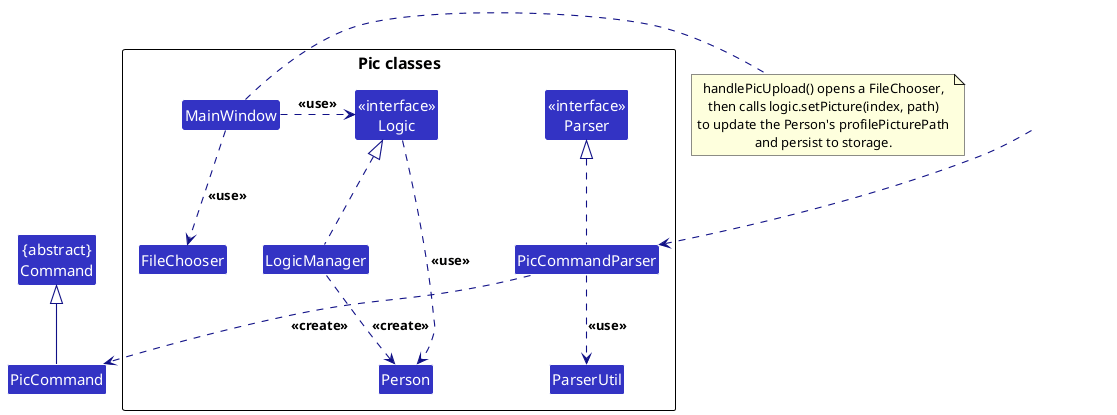
How it works:
-
AddressBookParserrecognises thepickeyword and delegates toPicCommandParser. -
PicCommandParserusesParserUtil.parseIndexto extract the target index and creates aPicCommand. -
PicCommand#executevalidates the index against the displayed list and returns aCommandResultwithshowPicPicker = trueand the zero-based index. -
MainWindowdetectscommandResult.isShowPicPicker()and callshandlePicUpload(index), which:- Opens a
FileChooserfiltered to image formats (PNG, JPG, JPEG, GIF, BMP). - On file selection, calls
logic.setPicture(index, file.getAbsolutePath()).
- Opens a
-
LogicManager#setPicturecreates a newPersonwith the updatedprofilePicturePathand persists the change to storage immediately.
UI behaviour:
- If no picture is set, a 📷 button is shown on the contact card; clicking it also triggers the file picker.
- If a picture is already set, the image is displayed (120×120 px); clicking the image replaces it.
- The picture path is stored in the JSON data file and loaded on every subsequent launch.
Command autocomplete feature
Overview
As the user types in the command box, a dropdown popup displays matching command templates. This lets users discover available commands and their parameter formats without consulting the User Guide.
Implementation
The feature spans three classes:
| Class | Package | Responsibility |
|---|---|---|
CommandSuggestion |
logic.autocomplete |
Immutable value object holding matchKey, description, and insertText
|
CommandAutocomplete |
logic.autocomplete |
Static catalog of all command templates; filters by prefix match |
CommandBox |
ui |
Manages the popup lifecycle and keyboard interactions |
CommandSuggestion stores three strings:
-
matchKey— the command word used for prefix-matching (e.g."sort"). -
description— a short parameter summary displayed in the dropdown (e.g."CONDITION ORDER (e.g. firstname a)"). -
insertText— the full string inserted into the command field when the suggestion is applied (e.g."sort firstname a").
CommandAutocomplete.getSuggestions(String userInput) filters the static CATALOG:
- Returns an empty list if
userInputisnull. - Strips leading whitespace from the input.
- Returns an empty list if the stripped input contains a space — the popup is only relevant while the user is still typing the command word.
- Returns all catalog entries whose
matchKeystarts with the input prefix (case-insensitive), sorted alphabetically.
Popup lifecycle in CommandBox:
The sequence below shows the flow for a user typing so and pressing Enter to accept the sort firstname a suggestion:
- User types
s→ text listener →updateAutocompletePopup("s")→ suggestions includesortandsetpassword→ popup shown. - User types
o→ same flow → suggestions narrow tosortonly. - User presses
Enter→handleAutocompleteKeyPressfires:- Current text
"so"≠"sort firstname a"(insertText) →applySelectedSuggestion(true)is called. -
applyingAutocompleteTemplateis set totrue, the text field is set to"sort firstname a", flag cleared. Popup hidden.skipNextTextFieldAction = true.
- Current text
- Text listener fires with
"sort firstname a"— becauseapplyingAutocompleteTemplatewastrueduring thesetTextcall,skipNextTextFieldActionis not cleared. - User edits the field (e.g. changes to
"sort lastname d"). First keystroke → text listener →applyingAutocompleteTemplateisfalse→skipNextTextFieldActionreset tofalse. Input contains a space → no suggestions → popup stays hidden. - User presses
Enter→ popup not showing →handleAutocompleteKeyPressreturns early → FXMLonActionfireshandleCommandEntered→skipNextTextFieldActionisfalse→ command is executed.
For no-argument commands (e.g. list, clear), the insertText equals the matchKey. At step 3, the text already matches the suggestion exactly, so the command executes immediately on the first Enter.
Documentation, logging, testing, configuration, dev-ops
Appendix: Requirements
Product scope
Target user profile:
- NUS students who need to manage contacts of classmates, TAs, professors, and project teammates
- has a need to manage a significant number of contacts across multiple modules and groups
- prefers desktop apps over other types
- can type fast
- prefers typing to mouse interactions
- is reasonably comfortable using CLI apps
Value proposition: Helps NUS students manage academic contacts faster than a typical mouse/GUI driven app, with convenient grouping by modules, visibility into contacts’ available hours, and quick lookup of classmates, TAs, and project teammates
User stories
Priorities: High (must have) - * * *, Medium (nice to have) - * *, Low (unlikely to have) - *
| Priority | As a … | I want to … | So that I can… |
|---|---|---|---|
* * * |
student | add a contact with details (name, email, position, major, available hours, group) | contact them at the right time and via the correct platform |
* * * |
student | add a contact to a class or group | click on groups/modules to see members and view people in specific groups |
* * * |
student | browse through my contact list | look up my friends’ contacts |
* * * |
student | delete a contact | remove people who are no longer relevant to my studies |
* * * |
new user | see usage instructions | refer to instructions when I forget how to use the App |
* * |
student | search for contacts by name, title, or group | find the contact I need easily |
* * |
student | edit existing contact details | keep information up to date as contacts change roles or classes |
* * |
student | assign custom tags to contacts | categorize them beyond just “Class” or “Group” |
* * |
student | pin a contact to the top | quickly find frequently used contacts |
* * |
student | import and export the contact file | migrate data easily when changing computers |
* * |
student | set a status for a contact (e.g., Prof, Peer, TA) | know the appropriate level of formality when reaching out |
* * |
student | view a “Recently Added” list | quickly access people I met at a recent event or study session |
* * |
student | filter contacts by department | find all TAs or students within a specific faculty |
* * |
student | sort contacts alphabetically by last name | ensure the list is predictable and easy to scan |
* * |
student | add a “Notes” section to a contact | remember personal details like where we met or project preferences |
* * |
student | click an email to open my default mail app | initiate communication instantly without copying/pasting |
* * |
student | add social media handles (LinkedIn/GitHub) to a contact | view their professional portfolio or code contributions |
* * |
student | create sub-groups within a major group | organise large classes into specific project teams |
* * |
student | operate using a basic GUI | navigate the app visually if I prefer |
* |
student | perform a “fuzzy search” | find a contact even if I don’t remember the exact spelling |
* |
student | filter contacts by “Available Hours” | see who is currently free to help me with a bug or project |
* |
student | use advanced search with combined criteria | narrow down results quickly (e.g., “TA” + “CS1101S”) |
* |
student | track “Last Contacted” date for a contact | see when I last spoke to a mentor and ensure I stay in touch |
* |
student | set a follow-up reminder for a contact | not forget to send promised project files or messages |
* |
student | detect and merge duplicate contacts | keep my address book clean and organised |
* |
student | add a profile picture to a contact | recognise contacts in person on campus |
* |
student | undo my last action | avoid losing data due to accidental deletions or edits |
* |
student | password-protect the address book | keep private contact information secure |
* |
student | “Clear All Data” with a confirmation step | reset for a new semester without manual deletion |
* |
student | toggle Dark/Light Mode | use the app comfortably in different lighting conditions |
* |
student | use keyboard shortcuts (e.g., Ctrl+N) | navigate and input data faster |
* |
student | switch between Summary and Detail views | choose between high-level scanning and deep-dive info |
Use cases
(For all use cases below, the System is the AddressBook and the Actor is the user, unless specified otherwise)
Use case: Add a contact with details
MSS
- User enters the add command with the contact’s details (required fields: name, phone, email, and address, and optional fields such as tag, position, major, available hours, and group)
- AddressBook validates the input
-
AddressBook adds the contact and displays a success message
Use case ends.
Extensions
-
2a. A required field (name, phone, email, or address) is missing or in an invalid format.
-
2a1. AddressBook shows an error message indicating the invalid field.
Use case resumes at step 1.
-
-
2b. A contact with the same name, phone number, or email already exists.
-
2b1. AddressBook shows a duplicate contact error message indicating which fields are duplicated.
Use case resumes at step 1.
-
Use case: Find contacts by group
MSS
- User enters the find command with a group keyword (e.g.,
find g/CS2103T) - AddressBook searches for contacts matching the specified group
-
AddressBook displays a filtered list of matching contacts
Use case ends.
Extensions
-
1a. The user provides an empty or invalid group keyword.
-
1a1. AddressBook shows an error message.
Use case resumes at step 1.
-
-
3a. No contacts match the specified group.
-
3a1. AddressBook displays “0 persons listed!”.
Use case ends.
-
Use case: Delete a contact
MSS
- User requests to list persons
- AddressBook shows a list of persons
- User requests to delete a specific person in the list by index
-
AddressBook deletes the person and displays a success message
Use case ends.
Extensions
-
2a. The list is empty.
Use case ends.
-
3a. The given index is invalid.
-
3a1. AddressBook shows an error message.
Use case resumes at step 2.
-
Use case: Search for a contact by name
MSS
- User enters the find command with a name keyword (e.g.,
find n/John) - AddressBook searches for contacts whose names match the keyword (case-insensitive)
- AddressBook displays a filtered list of matching contacts
-
User selects a contact from the list to view their full details
Use case ends.
Extensions
-
1a. The user provides an empty keyword.
-
1a1. AddressBook shows an error message.
Use case resumes at step 1.
-
-
3a. No contacts match the keyword.
-
3a1. AddressBook displays “0 persons listed!”.
Use case ends.
-
Use case: Schedule a meeting
MSS
- User enters the meet command with a description, time slot, and optional filters (e.g.,
meet Project sync h/1200-1300 g/CS2103T) - AddressBook filters contacts who match the filters and are available during the time slot
-
AddressBook creates the meeting with the matched contacts as attendees and displays a success message
Use case ends.
Extensions
-
1a. The description is missing.
-
1a1. AddressBook shows an error message with the correct format.
Use case resumes at step 1.
-
-
1b. The time slot (
h/) is missing or in an invalid format.-
1b1. AddressBook shows an error message.
Use case resumes at step 1.
-
-
2a. No contacts match the filters or are available during the time slot.
-
2a1. AddressBook shows a “no available contacts” error. No meeting is created.
Use case resumes at step 1.
-
-
3a. A meeting with the same description, date, and time slot already exists.
-
3a1. AddressBook shows a duplicate meeting error. No meeting is created.
Use case resumes at step 1.
-
Use case: Remove a meeting
MSS
- User enters
unmeet INDEXto delete a meeting by its index - AddressBook removes the meeting and reindexes the remaining meetings
-
AddressBook displays a success message
Use case ends.
Extensions
-
1a. The given index is invalid.
-
1a1. AddressBook shows an error message.
Use case resumes at step 1.
-
Use case: Set password protection
MSS
- User enters
setpassword pw/PASSWORD - AddressBook hashes the password and saves it to user preferences
-
AddressBook displays a success message
Use case ends.
Extensions
-
1a. The
pw/prefix is missing or the password value is empty.-
1a1. AddressBook shows an error message with the correct format.
Use case resumes at step 1.
-
Use case: Unlock password-protected address book on startup
MSS
- User launches the app
- AddressBook detects a stored password hash and shows a password dialog
- User enters the correct password
-
AddressBook opens normally
Use case ends.
Extensions
-
3a. User enters an incorrect password (attempt 1 or 2).
-
3a1. AddressBook shows how many attempts remain and re-prompts.
Use case resumes at step 3.
-
-
3b. User enters an incorrect password for the 3rd time.
- 3b1. AddressBook erases all contacts and removes the password.
-
3b2. AddressBook opens with an empty address book.
Use case ends.
-
3c. User cancels the dialog.
-
3c1. AddressBook closes without wiping any data.
Use case ends.
-
Use case: Edit a contact’s details
MSS
- User searches for a contact by name or lists all contacts
- AddressBook displays the contact list
- User enters the edit command with the contact’s index and the fields to update
- AddressBook validates the input and updates the contact
-
AddressBook displays the updated contact details with a success message
Use case ends.
Extensions
-
3a. The given index is invalid.
-
3a1. AddressBook shows an error message.
Use case resumes at step 2.
-
-
3b. No fields to edit are provided.
-
3b1. AddressBook shows an error message.
Use case resumes at step 2.
-
-
4a. The updated name, phone, or email matches an existing contact.
-
4a1. AddressBook shows a duplicate contact error message indicating which fields are duplicated.
Use case resumes at step 2.
-
Use case: Pin a contact
MSS
- User lists all contacts
- User enters
pin INDEXto pin a contact - AddressBook toggles the pin status and moves the contact to the top
-
AddressBook displays a success message
Use case ends.
Extensions
-
2a. The given index is invalid.
-
2a1. AddressBook shows an error message.
Use case resumes at step 1.
-
-
2b. 3 contacts are already pinned and the target is unpinned.
-
2b1. AddressBook shows a “maximum pins reached” error.
Use case resumes at step 1.
-
Use case: Sort contacts
MSS
- User enters
sort CONDITION ORDER(e.g.,sort firstname ASCorsort recent a) - AddressBook sorts the displayed list accordingly, keeping pinned contacts at the top
-
AddressBook displays a success message
Use case ends.
Extensions
-
1a. The condition or order is invalid.
-
1a1. AddressBook shows an error message with the correct format.
Use case resumes at step 1.
-
Use case: Export contacts
MSS
- User enters the export command with a file path (e.g.,
export fp/backup.json) - AddressBook writes all contacts to the specified file in JSON format
-
AddressBook displays a success message showing the number of contacts exported
Use case ends.
Extensions
-
1a. The file path is missing or blank.
-
1a1. AddressBook shows an error message with the correct usage format.
Use case resumes at step 1.
-
-
2a. The file cannot be written (e.g., read-only directory, invalid path).
-
2a1. AddressBook shows an I/O error message.
Use case resumes at step 1.
-
Use case: Import contacts
MSS
- User enters the import command with a file path (e.g.,
import fp/backup.json) - AddressBook reads the JSON file and merges the contacts into the current address book
-
AddressBook displays a success message showing the number of contacts added and the number of duplicates skipped
Use case ends.
Extensions
-
1a. The file path is missing or blank.
-
1a1. AddressBook shows an error message with the correct usage format.
Use case resumes at step 1.
-
-
2a. The specified file does not exist.
-
2a1. AddressBook shows a “file not found” error message.
Use case resumes at step 1.
-
-
2b. The file exists but is not readable or not a regular file.
-
2b1. AddressBook shows a “file not readable” error message.
Use case resumes at step 1.
-
-
2c. The file contains invalid JSON or does not match the expected format.
-
2c1. AddressBook shows a data format error message.
Use case resumes at step 1.
-
-
2d. All contacts in the import file are duplicates of existing contacts.
-
2d1. AddressBook displays a success message showing 0 added and N skipped.
Use case ends.
-
Non-Functional Requirements
- Should work on any mainstream OS (Windows, Linux, macOS) as long as it has Java
17or above installed. - Should be able to hold up to 1000 contacts without a noticeable sluggishness in performance for typical usage.
- A user with above average typing speed for regular English text (i.e. not code, not system admin commands) should be able to accomplish most of the tasks faster using commands than using the mouse.
- The application should be usable by a novice who has never used a CLI-based contact manager, with the help of the user guide.
- The data file should be stored locally in a human-editable text format (JSON), so that advanced users can directly manipulate the data if needed.
- The application should not require an internet connection to function.
- The application should start up within 3 seconds on a typical modern machine.
- The application should be a single-user product (i.e., not a multi-user or networked system).
- The product should be portable — it should work without requiring an installer, and should not depend on a remote server.
Glossary
- Mainstream OS: Windows, Linux, Unix, macOS
- CLI: Command Line Interface — a text-based interface where users type commands to interact with the application
- Module: A university course or class (e.g., CS2103T) that students are enrolled in
- Group: A user-defined label used to categorise contacts (e.g., a module code, project team, or social circle)
- Available Hours: The time range during which a contact is available, specified in 24-hour format (e.g., 0900-1800)
- Tag: A custom label that can be assigned to a contact for flexible categorisation beyond groups
- Position: The role of a contact in an academic context (e.g., Student, TA, Professor)
- Duplicate contact: Two contacts are considered duplicates if they share the same name, phone number, or email address (any one match is sufficient)
- MVP: Minimum Viable Product — the smallest set of features that delivers core value to the user
- Meeting: An organized event scheduling up to multiple contacts (attendees) for a specific time and date
- Color Mode / Theme: The global visual style (Dark or Light) applied contextually across the JavaFX visual application
Appendix: Instructions for manual testing
Given below are instructions to test the app manually.
Note: These instructions only provide a starting point for testers to work on;
testers are expected to do more exploratory testing.
Launch and shutdown
-
Initial launch
-
Download the jar file and copy into an empty folder
-
Double-click the jar file
Expected: Shows the GUI with a set of sample contacts. The window size may not be optimum.
-
-
Saving window preferences
-
Resize the window to an optimum size. Move the window to a different location. Close the window.
-
Re-launch the app by double-clicking the jar file.
Expected: The most recent window size and location is retained.
-
Deleting a person
-
Deleting a person while all persons are being shown
-
Prerequisites: List all persons using the
listcommand. Multiple persons in the list. -
Test case:
delete 1
Expected: First contact is deleted from the list. Details of the deleted contact shown in the status message. Timestamp in the status bar is updated. -
Test case:
delete 0
Expected: No person is deleted. Error details shown in the status message. Status bar remains the same. -
Other incorrect delete commands to try:
delete,delete x,...(where x is larger than the list size)
Expected: Similar to previous.
-
Password protection
-
Setting a password
-
Prerequisites: App is running with no password set.
-
Test case:
setpassword pw/mySecret123
Expected: Success message displayed.preferences.jsonnow contains apasswordHashfield. -
Test case:
setpassword pw/
Expected: Error message shown. No password is set. -
Test case:
setpassword mySecret123(missingpw/prefix)
Expected: Error message with correct format shown.
-
-
Removing a password
-
Prerequisites: Password is set (run
setpassword pw/testfirst). -
Test case:
removepassword
Expected: Success message.passwordHashfield removed frompreferences.json. -
Test case:
removepasswordwhen no password is set
Expected: Message indicating no password is currently set. No changes made.
-
-
Correct password on startup
-
Prerequisites: Set a password with
setpassword pw/test123, then exit and relaunch. -
Enter
test123in the password dialog.
Expected: App opens normally with all contacts intact.
-
-
Wrong password — data erasure after 3 attempts
-
Prerequisites: Set a password with
setpassword pw/correctPass, add at least one contact, then exit and relaunch. -
Enter
wrong1, thenwrong2, thenwrong3in the password dialog.
Expected: After the 3rd wrong entry, the app opens with an empty contact list.preferences.jsonno longer contains apasswordHash.
-
-
Cancelling the password dialog
-
Prerequisites: Password is set. Relaunch the app.
-
Click the Cancel button on the password dialog.
Expected: App closes. No data is erased. On next relaunch, the password dialog appears again.Exporting contacts
-
-
Exporting with contacts in the address book
-
Prerequisites: At least one contact in the list.
-
Test case:
export fp/test_export.json
Expected: Filetest_export.jsonis created. Success message shows the number of contacts exported. The file contains valid JSON matching the app’s data format. -
Test case:
export fp/test_export.json(run again)
Expected: The file is overwritten with the current contacts. Success message displayed.
-
-
Exporting with an empty address book
-
Prerequisites: Run
clearto empty the address book. -
Test case:
export fp/empty_export.json
Expected: Fileempty_export.jsonis created with an empty persons list. Success message shows 0 contacts exported.
-
-
Missing file path
- Test case:
export
Expected: No file is created. Error message showing correct usage format.
- Test case:
Importing contacts
-
Importing from a valid file
-
Prerequisites: Have a valid exported JSON file (e.g., created by running
export fp/test_export.jsonwith some contacts). -
Test case:
import fp/test_export.json
Expected: New contacts from the file are added to the address book. Duplicates (same name, phone number, or email) are skipped. Success message shows counts of added and skipped contacts.
-
-
Importing from a non-existent file
- Test case:
import fp/does_not_exist.json
Expected: Error message indicating the file was not found. Address book unchanged.
- Test case:
-
Importing from an invalid JSON file
-
Prerequisites: Create a file
bad.jsoncontaining the textnot valid json. -
Test case:
import fp/bad.json
Expected: Error message indicating the data could not be read. Address book unchanged.
-
-
Importing with all duplicates
-
Prerequisites: Export the current address book with
export fp/dup_test.json. Do not add or remove any contacts. -
Test case:
import fp/dup_test.json
Expected: Success message shows 0 added and N skipped (where N is the number of contacts in the file). Address book unchanged.
-
-
Missing file path
- Test case:
import
Expected: Error message showing correct usage format.
- Test case:
Pinning a contact
-
Pinning while all persons are shown
-
Prerequisites: List all persons using
list. At least 2 persons in the list. No persons pinned. -
Test case:
pin 1
Expected: First contact moves to (stays at) the top with a 📌 icon. Success message displayed. -
Test case:
pin 1again (same contact, now pinned)
Expected: Contact is unpinned. 📌 icon disappears. Success message displayed. -
Test case:
pin 0
Expected: No change. Error details shown.
-
-
Pinning when maximum (3) pins reached
-
Prerequisites: Pin 3 contacts using
pin 1,pin 2,pin 3. -
Test case:
pin 4(an unpinned contact)
Expected: Error message indicating maximum pins reached. -
Test case:
pin 1(unpin one), thenpin 4
Expected: First unpin succeeds, then pin succeeds.
-
Sorting contacts
-
Sorting by first name
-
Prerequisites: Multiple contacts in the list.
-
Test case:
sort firstname ASC
Expected: Contacts sorted alphabetically by first name (A→Z). Pinned contacts remain at the top. Success message displayed. -
Test case:
sort firstname DESC
Expected: Contacts sorted reverse-alphabetically by first name (Z→A). Success message displayed.
-
-
Sorting by last name
- Test case:
sort lastname ASC
Expected: Contacts sorted by last word of name, A→Z.
- Test case:
-
Invalid sort commands
-
Test case:
sort
Expected: Error message with correct usage format. -
Test case:
sort email ASC
Expected: Error message (invalid condition). -
Test case:
sort firstname UP
Expected: Error message (invalid order).
-
Saving data
-
Dealing with missing/corrupted data files
-
Simulation: Navigate to the
data/folder and manually editaddressbook.jsonto introduce a syntax error (e.g. remove a curly brace). Expected behavior: When the application starts, it detects the corrupted file and initializes an empty AddressBook (or shows a warning). -
Missing file: Delete the
data/addressbook.jsonfile completely, then start the application. Expected behavior: A new data file flow is initialized with sample contacts (not an empty AddressBook), and the JSON file is recreated on first exit or command.
-
Meetings and Scheduling
-
Scheduling a meeting with a group filter
-
Prerequisites: Multiple contacts exist, with at least one having the group
CS2103T. -
Test case:
meet Project sync h/1200-1300 d/2026-04-01 g/CS2103T
Expected: A meeting named “Project sync” is created for 2026-04-01 at 12:00-13:00. Contacts matching theCS2103Tgroup and available during that slot are added as attendees. -
Test case:
unmeet 1
Expected: The first meeting in the meeting list is deleted. Expected success message shown.
-
Profile Pictures
-
Attaching a picture to a contact
-
Prerequisites: A contact exists at index 1.
-
Test case:
pic 1
Expected: A system file dialog opens. Allow the user to select an image from the filesystem. Once selected, the 1st contact’s profile picture updates to the specified image.
-
Follow-up Reminders
-
Setting a follow-up date for a contact
-
Prerequisites: A contact exists at index 1.
-
Test case:
followup 1 f/Email about internship by Friday
Expected: A follow-up note is assigned to the 1st contact and appears in their contact detail panel. -
Test case:
clearfollowup 1
Expected: The follow-up reminder for the 1st contact is cleared.
-
UI Theming
-
Toggling the application color mode
-
Prerequisites: App is running in the default Light (or Dark) theme.
-
Test case:
toggle color mode
Expected: The interface immediately switches to the opposite color mode (e.g., from Light to Dark mode), applying new colors to all panels and fonts.
-
Advanced Fuzzy Find
-
Finding a contact with typos
-
Prerequisites: Address book contains a contact named “Alexander”.
-
Test case:
find -o n/Alexandr
Expected: The contact “Alexander” is shown in the search results despite the minor typo, leveraging the integrated fuzzy search.
-
Appendix: Effort
Difficulty Level and Reference to AB3
AddressBook-Level 3 (AB3) served as the baseline for this project. While AB3 manages a single standard entity (Person) with basic CRUD operations, CampusLink significantly increases the complexity by introducing a secondary entity (Meeting) and establishing relationships between them. This required a major overhaul of the Model and Storage components to handle relational constraints, such as cascading updates (e.g., when a contact is deleted or edited, their attendee records in meetings must automatically update).
Challenges Faced
-
Relational Data Management: Ensuring that
Meetingattendees were perfectly synchronized with theUniquePersonListwas challenging. It required designing strict immutability and cascading deletion logic to prevent dangling references in the event of contact modifications. -
Advanced Search Mechanisms: Moving beyond AB3’s exact sub-string matching to implement a custom Fuzzy Search (using Levenshtein distance) required complex algorithmic integration within the existing
PredicateandComparatorarchitectures, balancing performance with accuracy. - Security Integration: Implementing the Password Protection feature presented a unique challenge in managing the application lifecycle (locked vs. unlocked states). Securely hashing passwords, intercepting the normal startup flow, and handling testing for these state changes added significant difficulty.
- Dynamic UI: Building a comprehensive UI theming system (Light/Dark mode) and adding support for local profile picture uploads required deep diving into JavaFX styling and filesystem interactions, which were completely absent in AB3.
Effort Required and Achievements
The project required substantial effort across all layers of the application—from deep algorithmic enhancements in the Logic and Model components to completely replacing the UI layer’s aesthetic. Despite the increased complexity of managing multiple entities, maintaining robust security, and adding sophisticated search capabilities, the team successfully maintained a high level of code quality and test coverage.
Reuse
A significant part of the effort (~20%) was saved by reusing the core Model-View-Controller (MVC) architecture, the LogicManager scaffolding, and the JSON storage abstractions from AB3. Leveraging external libraries like Jackson (for JSON serialization) and JavaFX (for the GUI) allowed the team to focus on feature implementation and architectural extensions rather than building foundational boilerplate from scratch.
Appendix: Planned Enhancements
Team size: 4
- Prevent multiple application instances: Currently, multiple instances of CampusLink can be launched simultaneously. This can lead to data loss or overwriting if changes are made concurrently in separate windows. We plan to add a single-instance check to prevent opening concurrent instances of the application.
- Allow duplicate names for different contacts: Currently, contacts cannot share the exact same name, even though in a real-world campus setting, different students might have identical names. We plan to update the duplicate detection to strictly mandate unique phone numbers and email addresses, while providing a helpful warning (without blocking the addition outright) if a newly added contact shares a name with an existing one.
-
Allow multiple follow-up reminders per contact: Currently, the
followupcommand limits users to storing only a single reminder per contact. This is often too limiting for tracking multiple tasks for a professor or peer (e.g., “Email project files” and “Return borrowed book”). We plan to update thePersonmodel to store a list of reminders instead of a single string, allowing users to add, view, and incrementally clear multiple follow-up tasks. - Prevent irreversible data loss on wrong password entries: Currently, entering the wrong password three times at startup silently wipes the entire address book and removes the password. We plan to address this harsh feature flaw by locking the app temporarily or providing a separate recovery step, rather than permanently destroying all user data without an explicit confirmation warning.
-
Extend
TimeSlotinto a generalized set of time intervals: Currently, theTimeSlotused forPersonandMeetingonly accepts a single time interval within one calendar day. We plan to extendTimeSlotparsing and validation so it can represent any collection of non-overlapping intervals, including overnight intervals that cross midnight. -
Preserve contact list order after
findoperations: Currently, executing alistcommand after afindoperation does not appropriately reset the active list to its default unsorted chronological order. We plan to update thelistcommand execution so that it correctly resets the underlyingSortedListcomparator back to the default ordering whenever the search filter is cleared. -
Allow appending text to existing fields during an edit: Currently, the
editcommand requires users to retype an entire entry if they merely wish to add a last name to an existing first name (e.g., editing “Alice” to “Alice Tan”). We plan to introduce an append syntax (such as prepending a+sign:edit 1 n/+ Tan) that directly appends the provided text to the existing contact’s field value. -
Extend fuzzy search capabilities to the
meetcommand: Currently, the advanced fuzzy search logic is exclusively implemented in thefindcommand. This limits usability when users have minor typos in contact names while attempting to schedule a meeting. We plan to integrate the fuzzy matching component within themeetcommand’s attendee filtering process so that it handles minor typos seamlessly.