User Guide
CampusLink is a desktop app for managing contacts, optimized for use via a Command Line Interface (CLI) while still having the benefits of a Graphical User Interface (GUI). If you can type fast, CampusLink can get your contact management tasks done faster than traditional GUI apps.
Table of Contents
- Quick start
-
Features
- Using command autocomplete
- Viewing help :
help - Adding a person :
add - Listing all contacts :
list - Editing a contact :
edit - Finding contacts :
find - Scheduling a meeting :
meet - Removing a meeting :
unmeet - Deleting a contact :
delete - Pinning a contact :
pin - Sorting contacts :
sort - Setting a profile picture :
pic - Toggling dark / light mode :
toggle color mode - Clearing all contacts :
clear - Setting a password :
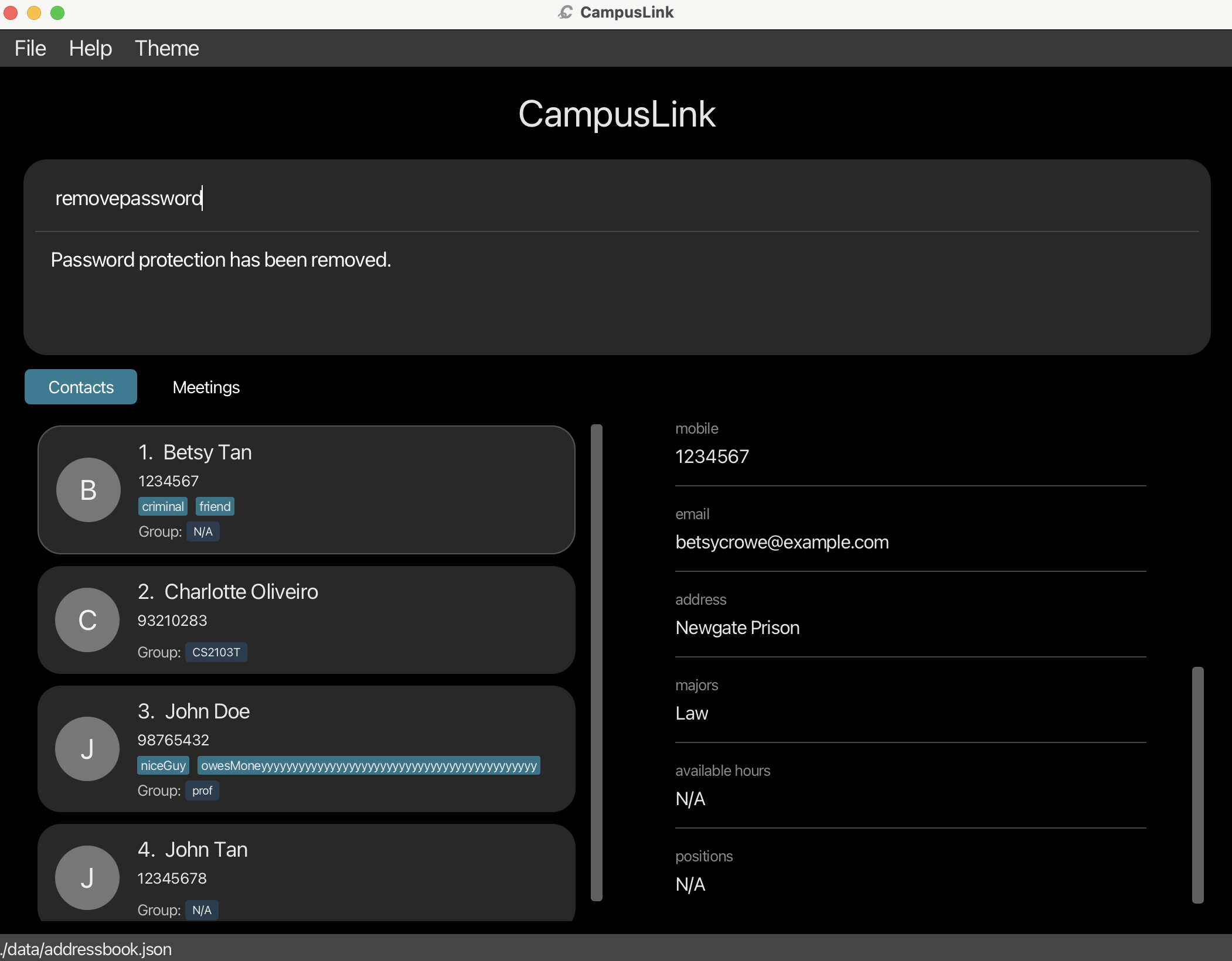
setpassword - Removing password protection :
removepassword - Exporting contacts :
export - Importing contacts :
import - Setting a follow-up reminder :
followup - Clearing a follow-up reminder :
clearfollowup - Exiting the app :
exit - Saving the data
- Editing the data file
- Security limitations of password protection
- FAQ
- Known issues
- Glossary
- Command summary
Quick start
-
Ensure you have Java
17or above installed in your Computer.
Mac users: Ensure you have the precise JDK version prescribed here. Windows users: Ensure you have the precise JDK version prescribed here. Linux users: Ensure you have the precise JDK version prescribed here. -
Download the latest
.jarfile from here. -
Copy the file to the folder you want to use as the home folder for CampusLink.
-
Open a command terminal,
cdinto the folder you put the jar file in, and use thejava -jar campuslink.jarcommand to run the application.
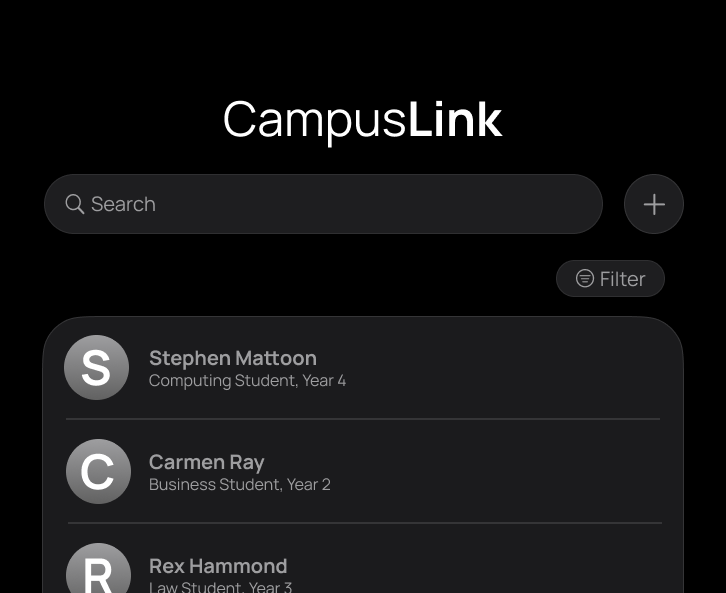
A GUI similar to the below should appear in a few seconds. Note how the app contains some sample data.
-
Type the command in the command box and press Enter to execute it. e.g. typing
helpand pressing Enter will open the help window.
Some example commands you can try:-
list: Lists all contacts. -
add n/John Doe p/98765432 e/johnd@example.com a/John street, block 123, #01-01: Adds a contact namedJohn Doeto CampusLink. -
delete 3: Deletes the 3rd contact shown in the current list. -
edit 2 g/student: Edits the group information of the 2nd contact in the current list. -
clear: Deletes all contacts. -
pic 1: Opens a file picker to set a profile picture for the 1st contact. -
followup 1 f/Send project files: Sets a follow-up reminder on the 1st contact. -
clearfollowup 1: Removes the follow-up reminder from the 1st contact. -
toggle color mode: Switches between dark and light mode. -
exit: Exits the app.
-
-
Refer to the Features below for details of each command.
Features
 Notes about the command format:
-
Prefixes (like
n/,p/) act as labels to tell the app which field you are filling out. For example,p/91234567explicitly tells the app the phone number is 91234567. -
Words in
UPPER_CASEare the parameters to be supplied by the user.
e.g. inadd n/NAME,NAMEis a parameter which can be used asadd n/John Doe. -
Items in square brackets are optional.
e.g.n/NAME [t/TAG]can be used asn/John Doe t/friendor asn/John Doe. -
Items with
… after them can be used multiple times including zero times.
e.g.[t/TAG]…can be used as ` ` (i.e. 0 times),t/friend,t/friend t/familyetc. -
Parameters can be in any order.
e.g. if the command specifiesn/NAME p/PHONE_NUMBER,p/PHONE_NUMBER n/NAMEis also acceptable. -
Extraneous parameters for commands that do not take in parameters (such as
help,list,exitandclear) will be ignored.
e.g. if the command specifieshelp 123, it will be interpreted ashelp. -
For commands that parse prefixed fields (e.g.
find), prefixes unrelated to that command are treated as normal text input instead of parsed fields.
e.g. infind,f/is treated as text unless it appears under a supportedfindprefix such asn/ora/. -
For timeslot/available hours, each person can have at most one timeslot. Start and end times are both inclusive, treated as the same day, and end time must be after start time.
e.g.h/0900-1700is valid buth/1700-0900is invalid. -
Some commands (e.g.
find,meet) filter the contact list displayed. To view all contacts again, use thelistcommand. -
If you are using a PDF version of this document, be careful when copying and pasting commands that span multiple lines as space characters surrounding line-breaks may be omitted when copied over to the application.
Using command autocomplete
As you type in the command box, CampusLink suggests matching commands in a dropdown.
- The popup appears while you are typing the command word (before the first space).
- Each suggestion shows the command name and a short summary of its parameters, e.g.
sort - CONDITION ORDER (e.g. firstname a). - Use
↓/↑to move between suggestions. PressEnterto apply the highlighted suggestion — this fills the command field with a template you can edit. - Press
Escto dismiss the popup without applying anything. - After the template is inserted, replace the placeholder values with your input and press
Enterto execute the command.
 Tip:
For commands with no arguments (e.g.
Tip:
For commands with no arguments (e.g. list, clear, exit), pressing Enter on the suggestion executes the command immediately without a second press.
Viewing help : help
Opens a link to the full CampusLink User Guide in your browser.
If you are unsure what commands are available or how to use a specific feature, help displays a pop-up window with a URL to this guide. Click the Copy URL button and paste it into your browser to read the full documentation.
Format: help

What happens: A help window appears with a link to this User Guide. No changes are made to your contacts.
Adding a person : add
Saves a new contact to CampusLink.
Use this command when you meet someone new — a classmate, professor, or project teammate — and want to store their details for later. You must provide their name, phone number, email, and address. Everything else (tags, group, position, major, available hours) is optional and can be added now or edited later.
Format: add n/NAME p/PHONE_NUMBER e/EMAIL a/ADDRESS [t/TAG]…
[g/GROUP]… [po/POSITION]… [m/MAJOR]… [h/AVAILABLE_HOURS]
Arguments:
| Argument | Prefix | Required | Description |
|---|---|---|---|
| Name | n/ |
✅ Yes | Full name of the contact |
| Phone number | p/ |
✅ Yes | Contact’s phone number |
e/ |
✅ Yes | Contact’s email address | |
| Address | a/ |
✅ Yes | Contact’s address |
| Tag | t/ |
No | A short label (e.g. friend, TA). Add as many as you like. |
| Group | g/ |
No | A class or project group (e.g. CS2103T). Add as many as you like. |
| Position | po/ |
No | Their role or title (e.g. Professor, Peer). Add as many as you like. |
| Major | m/ |
No | Their course of study (e.g. Computer Science). Add as many as you like. |
| Available hours | h/ |
No | When they are typically free (e.g. 0900-1900). |
Tip:
A person can have any number of tags, groups, majors, and positions (including 0). You can always add or change these later using the edit command.
How CampusLink cleans up field input:
Before any field value is saved, CampusLink applies two automatic clean-ups:
-
All fields — leading and trailing spaces are trimmed (e.g. ` John Doe ` →
John Doe). -
Name, Position, and Major only — multiple consecutive internal spaces are collapsed into one (e.g.
John Doe→John Doe).
Fields like Address are intentionally left untouched after trimming, because internal spacing may carry meaning (e.g. a building name with deliberate formatting). Group and Tag disallow spaces entirely, so collapsing does not apply.
 Name format restriction:
Names must start and end with alphanumeric characters (letters or digits, including non-ASCII characters such as accented letters). Spaces, apostrophes (
Name format restriction:
Names must start and end with alphanumeric characters (letters or digits, including non-ASCII characters such as accented letters). Spaces, apostrophes ('), and hyphens (-) are allowed in between, but the name cannot begin or end with them. Names containing / (e.g. Ramesh s/o Kumar) are not supported — the / character is reserved as a prefix separator in CampusLink’s command syntax and cannot appear inside a field value. As a workaround, you can omit the slash (e.g. Ramesh so Kumar) or replace it with a space (e.g. Ramesh s o Kumar).
Phone number format:
Phone numbers must contain 3 to 15 digits. They may optionally include a leading + (for country codes), and formatting characters such as spaces, dashes (-), and parentheses are allowed (e.g. +65 9123-4567, (65) 91234567). At least 3 and at most 15 digit characters must be present.
Other field formats:
-
Email: Must follow
local-part@domainformat. The local-part may contain alphanumeric characters and the special characters+,_,.,-, but cannot start or end with any of these special characters. The domain must be a valid domain name whose final label is at least 2 characters long (e.g.example.com,nus.edu.sg). - Address: Any non-blank value is accepted — no character restrictions apply.
- Tag: Must be alphanumeric. No spaces or special characters allowed.
-
Group: Must contain ASCII alphanumeric characters only (
A–Z,a–z,0–9). No spaces or special characters allowed. -
Position: Must start with an ASCII alphanumeric character (
A–Z,a–z,0–9) and may contain letters, digits, and spaces after that. -
Major: Must start with an ASCII alphanumeric character (
A–Z,a–z,0–9) and may contain letters, digits, and spaces after that. -
Available hours: Must be in
HHMM-HHMM(24-hour) format with start time strictly before end time; both times are in the same day (e.g.0900-1700).
Field validation is intentionally permissive:
CampusLink’s validation rules prioritize flexibility and do not reject all semantically odd inputs. For example, a name like J---D (consecutive hyphens), a phone like +((91234567)) (excessive parentheses), or an address like !!! will all be accepted. If you accidentally enter a malformed value, use the edit command to correct it.
Duplicate Detection:
CampusLink automatically detects duplicate contacts. A contact is considered a duplicate if it shares the same name, phone number, or email as an existing contact — matching on any one of these three fields is sufficient to flag a duplicate. If a duplicate is detected, the contact will not be added and a warning will indicate which fields are duplicated (e.g. duplicate name, phone detected).
Phone numbers and email addresses are usually unique to one individual — two different people rarely share them, so a match on either field is a strong signal of a duplicate entry. Name matching is an additional safety net: while two people can share the same name, accidentally re-entering the same contact twice is a far more common mistake than having two genuinely distinct contacts with identical names. The OR rule therefore catches the most likely accidents while keeping you informed of exactly which field triggered the warning.
-
Name and email matching is case-insensitive —
john doeandJohn Doeare treated as the same name;Alice@Example.comandalice@example.comare treated as the same email. -
Phone matching is exact —
91234567and9123 4567are treated as different phone numbers.
Examples:
- Adding a classmate with just the required details:
add n/John Doe p/98765432 e/johnd@example.com a/John street, block 123, #01-01Outcome: John Doe is added to the contact list with his phone, email, and address.
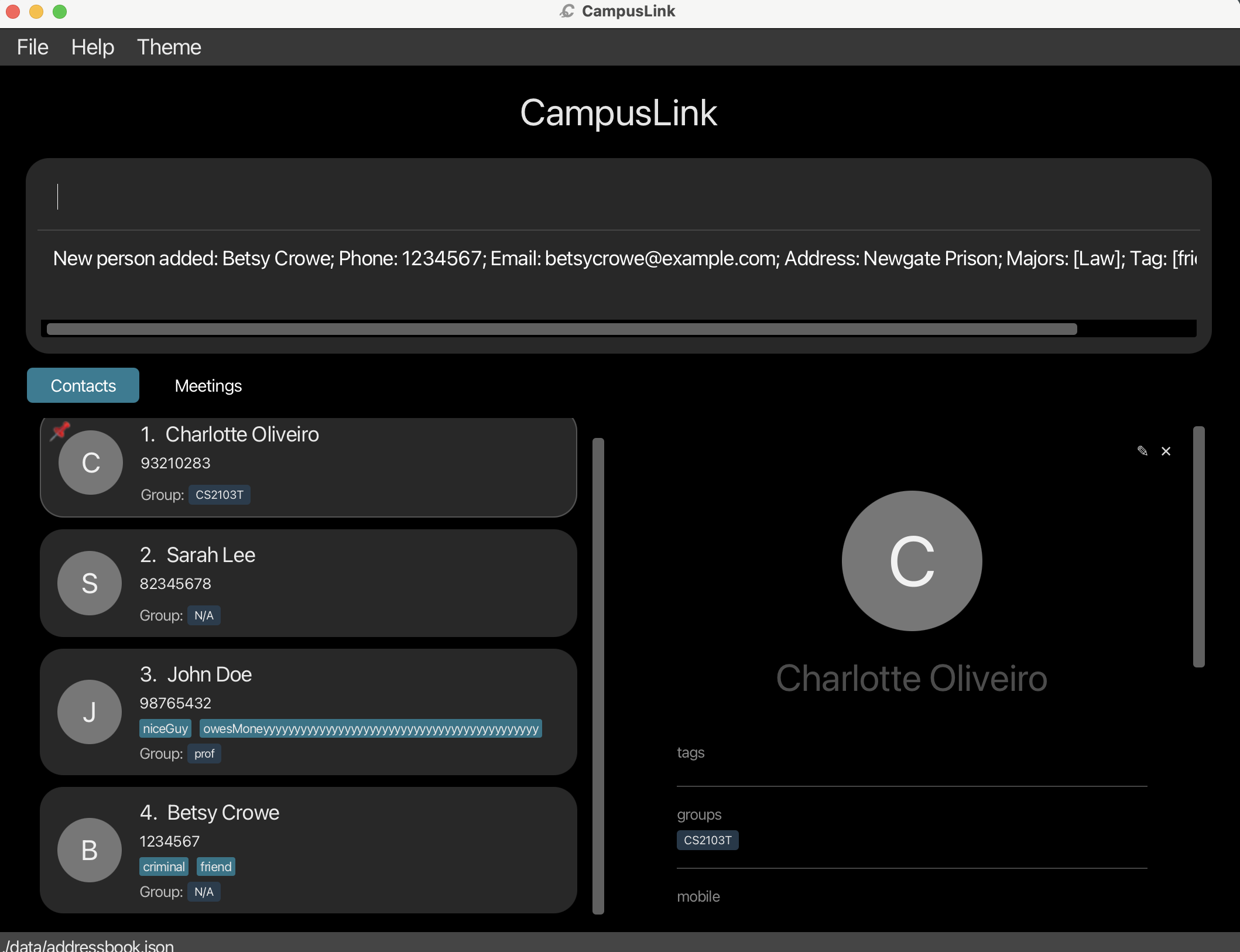
- Adding a contact with optional fields (major and tags):
add n/Betsy Crowe t/friend t/criminal e/betsy@example.com a/Blk 5 p/1234567 m/LawOutcome: Betsy Crowe is added with two tags (
friend,criminal) and her major set toLaw.
Listing all contacts : list
Shows every contact saved in CampusLink.
Use this after a find or sort command to return to the full unfiltered view of all your contacts.
Format: list
What happens: The contact panel refreshes to display all saved contacts in their current sort order. No contacts are added, removed, or modified.
Editing a contact : edit
Updates one or more details of an existing contact.
Use this when a classmate changes their phone number, you want to add a new tag, or you need to fix a typo in someone’s name. You identify the contact by their position number in the currently displayed list, then specify only the fields you want to change.
Format: edit [FLAG] INDEX [n/NAME] [p/PHONE] [e/EMAIL] [a/ADDRESS] [t/TAG]…
[g/GROUP]… [po/POSITION]… [m/MAJOR]… [h/AVAILABLE_HOURS]
Arguments:
| Argument | Description |
|---|---|
FLAG |
Optional. Use -a to append new values to existing ones (e.g. add a tag without removing existing tags). Use -r to replace all existing values with the new ones. If omitted, fields like name and phone are overwritten, and multi-value fields (tags, groups, etc.) are replaced. |
INDEX |
The number shown next to the contact in the list. Must be a positive whole number (1, 2, 3, …). |
n/NAME |
New name for the contact. |
p/PHONE |
New phone number. |
e/EMAIL |
New email address. |
a/ADDRESS |
New address. |
t/TAG |
Tag to set. Use t/ with nothing after it to remove all tags. |
g/GROUP |
Group to set. Use g/ with nothing after it to remove all groups. |
po/POSITION |
Position to set. |
m/MAJOR |
Major to set. |
h/AVAILABLE_HOURS |
Available hours to set. |
Note:
At least one field (besides the flag) must be provided. You cannot run edit 1 with nothing else — there would be nothing to change.
Important behaviors:
-
INDEX is relative to the displayed list. After a
findcommand, index 1 refers to the first contact shown, not the first contact in the full list. Always confirm which contact is at a given index before editing. -
Duplicate check applies. If the edited name, phone, or email would match another existing contact, the edit is rejected with a duplicate warning. No changes are saved. Name and email matching is case-insensitive; phone matching is exact (e.g.
91234567and9123 4567are not considered the same). -
-aappends; default replaces. Without any flag, multi-value fields (tags, groups, positions, majors) are fully replaced by what you supply. With-a, your new values are added on top of the existing ones. Fields including name, phone, email, address are always overwritten regardless of flag. -
Available hours is single-value per person. A contact can have at most one
h/START-ENDslot, so supplying a newh/value replaces the previous one. - Editing a pinned contact does not affect its pin status — the contact remains pinned after editing.
- Editing available hours does not affect existing meetings. If you change a contact’s available hours, any meetings they were already added to remain unchanged — they are still listed as attendees.
-
Input clean-up applies. The same trimming and space-collapsing rules as
addapply here — leading/trailing spaces are trimmed from all fields, and multiple consecutive internal spaces in Name, Position, and Major are collapsed into one. -
Active filter is cleared on success. After a successful
edit, the contact list resets to show all contacts, regardless of anyfindfilter that was active beforehand. If you need to continue working within a filtered view, re-run yourfindcommand after editing.
Examples:
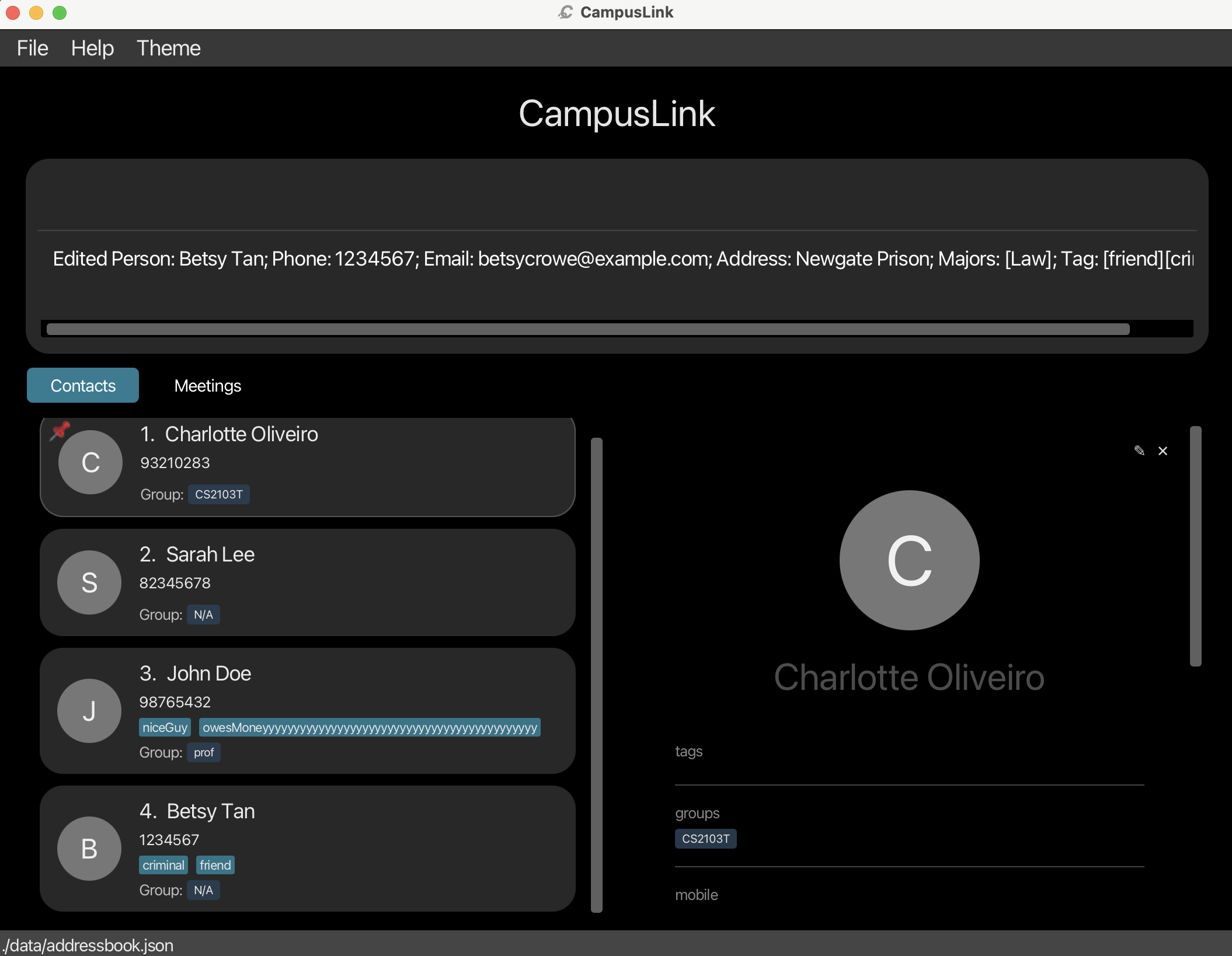
- Update the phone number and email of the 1st contact:
edit 1 p/91234567 e/johndoe@example.comOutcome: The 1st contact’s phone becomes
91234567and email becomesjohndoe@example.com. All other details remain unchanged. - Add a tag to the 2nd contact without removing their existing tags:
edit -a 2 t/visibleOutcome: The tag
visibleis added to the 2nd contact’s existing tags. - Remove all tags from the 3rd contact:
edit 3 t/Outcome: All tags are cleared from the 3rd contact.
Finding contacts : find
Searches your contact list and shows only matching results.
Use this when you want to quickly locate a specific person or a group of people. You can search across multiple fields at once and control whether multiple keywords for the same field must all match or whether any one of them is enough.
Format: find [-c/-o PREFIX/KEYWORD…]…
| Argument | Description |
|---|---|
PREFIX/KEYWORD |
What to search for. Use n/ for name, p/ for phone, e/ for email, a/ for address, g/ for group, po/ for position, m/ for major, t/ for tag, h/ for time/timeslot. |
-c (flag) |
Compulsory / all-match — ALL keywords under -c must match their respective fields. |
-o (flag) |
Optional / any-match — ANY one keyword under -o matching its field is sufficient. |
Arguments:
- At least one keyword must be supplied, each preceded by its prefix (e.g.,
n/). - Keyword for
h/can be a time (e.g.h/0900) or a timeslot (e.g.h/0900-1700). A contact matches if they are available at the time/during the entire timeslot. - Flags control matching behavior for the keywords that follow them. By default (no flag) keywords are treated as
-o(any-match). - Flags must be surrounded by spaces (but flag at the very end of a command does not require trailing space). Where input can be read as both a flag and a keyword, it is treated as a flag.
- When multiple flags appear, each keyword follows the last flag before it. E.g.,
-c -o n/James -c po/Principal→ optional name “James”, compulsory position “Principal”.
How matching works:
- This section introduces the exact match rule, but in general typos are permitted, as explained in the Fuzzy Search section below.
- Search is case-insensitive —
hansmatchesHans. - Keywords for name, email, phone, and address are partial matches —
HmatchesHans. If a person’s available hours are not set, they are always interpreted as available. - For name, email, address and phone, compulsory find requires the whole keyword to match, while optional find only requires any space-separated part of a keyword to match.
- When both compulsory and optional fields are given, a contact must satisfy all compulsory conditions and at least one optional condition to appear in the results.
- If only optional fields are given, a contact must satisfy at least one of them to appear in the results; if only compulsory fields are given, a contact must satisfy all of them to appear in the results.
- Flags are space-delimited — a token is treated as a flag only if it appears after a space, and is followed by a space.
- Repeated flags with no meaningful content between them are allowed. Blank space and intermediate chunks without any prefixes are ignored by later parsing.
- A valid flag marks the end of the previous flagged segment. Once a valid flag appears, subsequent text is interpreted under the new flag.
- Search input is intentionally permissive. The parser does not restrict what kind of value may be entered under each prefix. For example, searching for phone number
xyzis permitted. - Under
-c: all keywords for the same field must match (AND semantics). e.g.-c n/John n/Doeonly returns contacts whose name matches bothJohnandDoe. - Under
-o: any keyword for the same field matching is enough (OR semantics). e.g.-o n/Alex n/Davidreturns contacts whose name containsAlexorDavid.
Fuzzy Search — find also tolerates typos (name n/, phone p/, address a/, email e/ fields only):
Fuzzy search is built into the find command. When you search by name, phone, address, or email, CampusLink automatically tries to match your keyword even if it contains small typos or misspellings — you do not need to do anything special to activate it.
Details and behavior:
- Fuzzy matching allows up to 1 edit. An “edit” is a single character-level change: inserting a character (e.g.
Aelx→Alex), deleting a character (e.g.Alx→Alex), or substituting one character for another (e.g.Alox→Alex). A keyword with up to 1 such change will still match the intended field. - Fuzzy match will be applied only after exact match fails, and it is token-based: both the field value and keyword are split by spaces first.
- For a multi-word keyword (e.g.
Alex Yeaa): under-c, each keyword part must match; under-o, any one keyword part matching is sufficient. - Fields
t/,m/,po/, andg/do not use fuzzy matching — these use case-insensitive substring matching only.h/also does not use fuzzy matching; it uses availability containment rules (time within slot or slot within slot). - Result order after filtering keeps pinned contacts first, then sorts by fuzzy score (the proximity between the field and search keywords).
Examples:
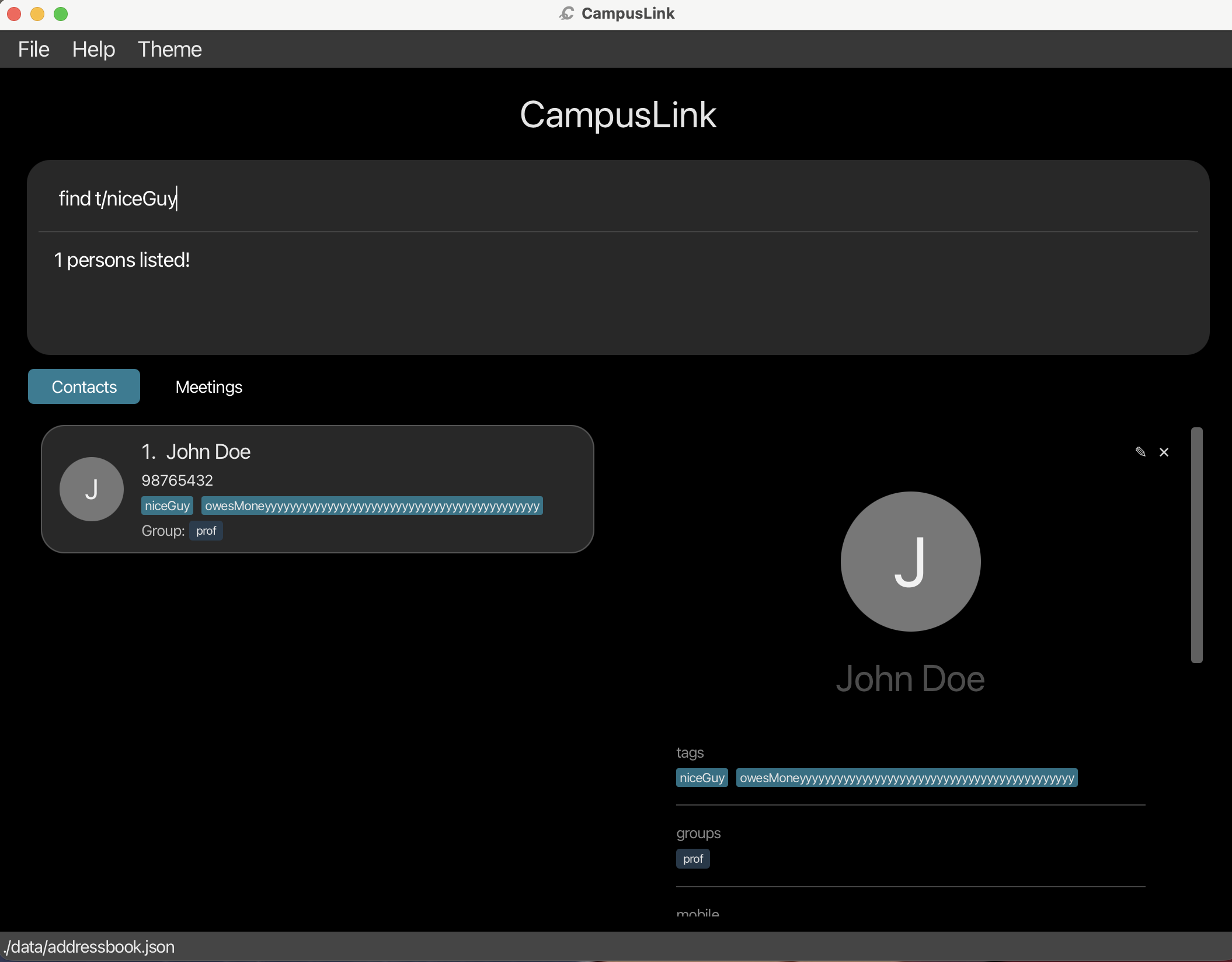
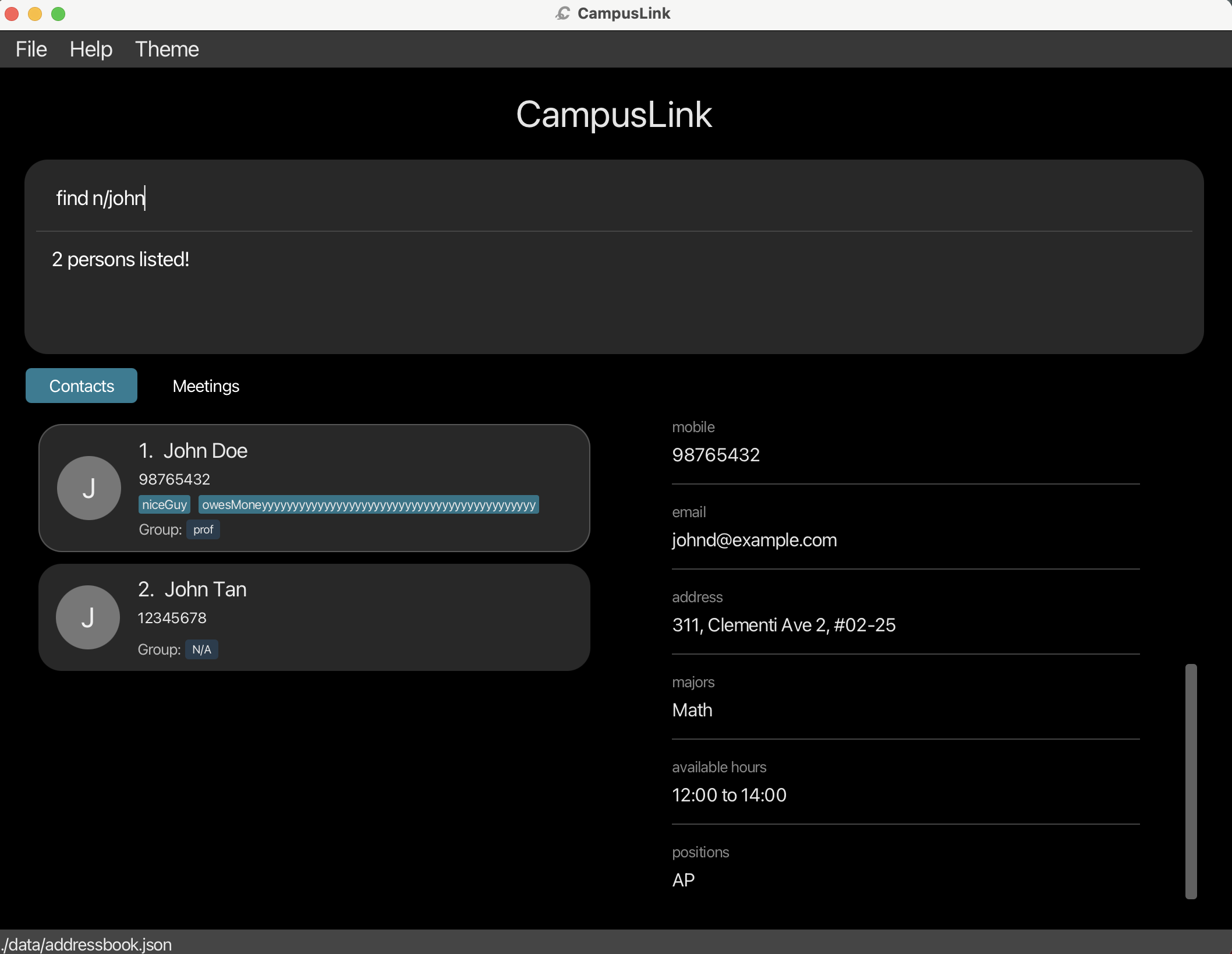
- Find everyone named John:
find n/JohnOutcome: Shows all contacts whose name contains “John” (e.g.
John Doe,John Smith). - Find contacts with a typo in name (fuzzy search):
find n/AlxeOutcome: Still matches contacts like
Alex YeohbecauseAlxeis within the fuzzy match threshold. - Find contacts named Alex or David (any-match, default):
find n/Alex n/DavidOutcome: Shows
Alex Yeoh,David Li, and anyone else named Alex or David.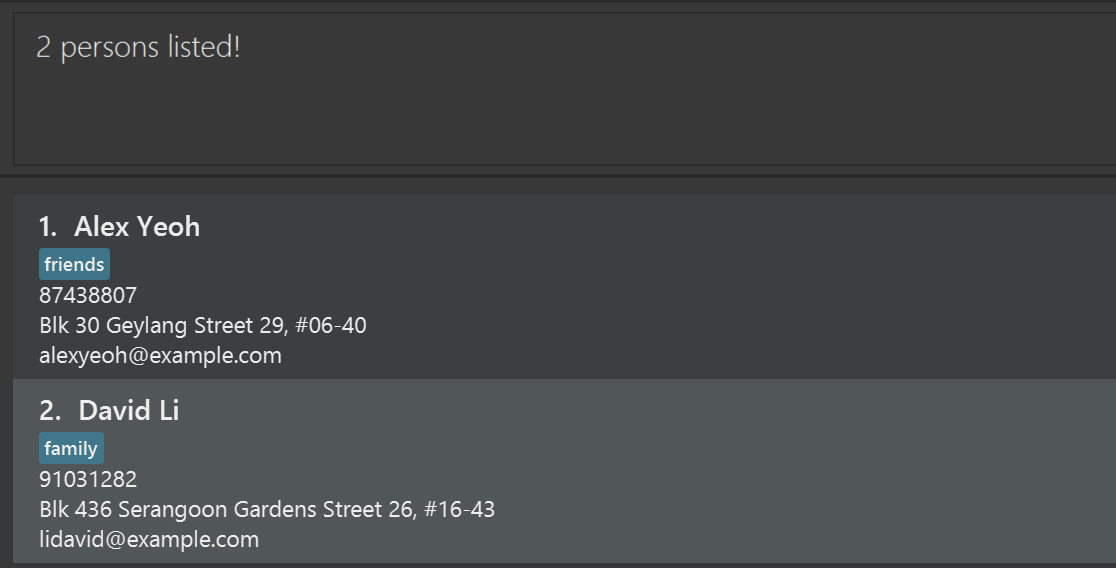
- Find contacts named both “John” and “Doe” (all-match):
find -c n/John n/DoeOutcome: Shows only contacts whose name contains both
JohnandDoe, e.g.John Doe. -
find n/Alex YeaareturnsAlex Yeoh(Yeaais within 1 edit ofYeoh) - Find contacts in the CS2103T group, with the optional tag
projectorfriend, but with typos in between:find -c g/CS2103T -o t/project t/friend -c -otypoOutcome: Shows contacts who are in the
CS2103Tgroup and have at least one ofprojectorfriendtag.
Important behaviors:
-
Empty keyword after a prefix is invalid.
find n/(prefix with nothing after it) is rejected. Every prefix must be followed by a non-empty keyword. -
No matching contacts results in an empty contact list being displayed, not an error. Run
listto restore the full view. -
Fuzzy matching is intentionally permissive. A very short keyword (e.g., a single letter) may match many contacts because the edit-distance threshold is generous. Narrow your search with more characters or use
-cfor stricter results. -
The displayed list is updated, not the saved data. Running
finddoes not delete or modify any contact.
Scheduling a meeting : meet
Creates a meeting at a specific time with contacts who satisfy your filters and are available in that time slot.
Format: meet DESCRIPTION h/START-END [d/YYYY-MM-DD]
[n/NAME] [g/GROUP] [m/MAJOR] [po/POSITION] [t/TAG]…
-
DESCRIPTIONis required and must come first as plain text (without a prefix). -
h/START-ENDis required and must appear exactly once. Contacts must be available for the entire duration from START to END to be included in the meeting. - If a contact has no available hours set, they are treated as available by default.
-
d/YYYY-MM-DDis optional and must appear at most once. If omitted, today’s date will be used. -
n/,g/,m/,po/, andt/are optional filters. If you provide multiple filters, a contact is included if they match at least one provided filter. - Prefixes not listed above (for example
a/) are treated as plain description text, instead of usual prefixes. - If no filters are provided, all contacts are checked for availability. But empty keywords after a filter are not allowed (e.g.,
n/is invalid). - A contact can attend overlapping meetings as long as their available hours allow it (so multitasking is possible).
- The command fails if no available contacts match the filters. No meeting is created.
- The command also fails if an identical meeting already exists.
Examples:
- Schedule a meeting with specific attendee filters:
meet Project sync h/1200-1300 d/2026-04-01 n/Alex g/CS2103T t/projectOutcome: Creates a meeting “Project sync” on 2026-04-01 from 12:00–13:00, including contacts who match any of: named Alex, in group CS2103T, or tagged project — and who are free during that slot.
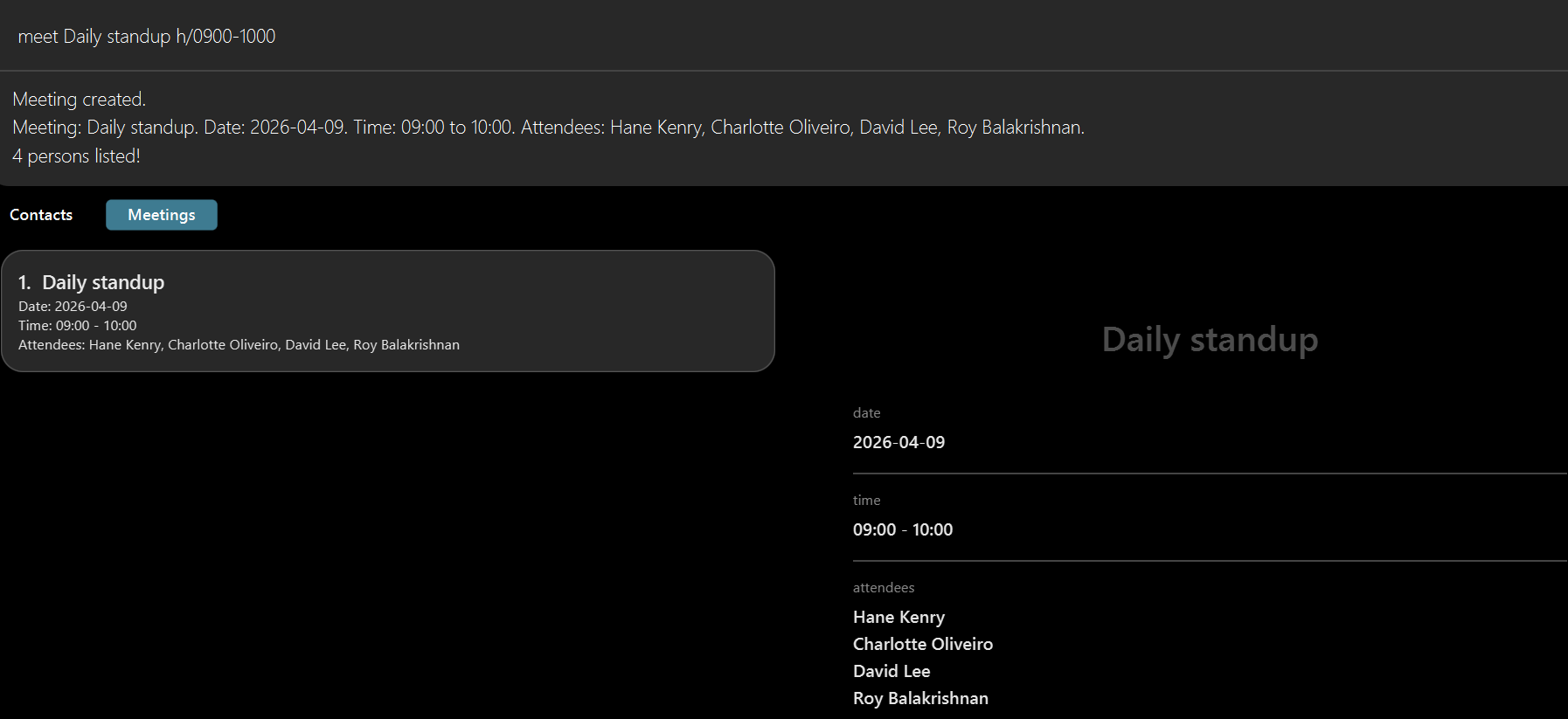
- Schedule a meeting with all available contacts:
meet Daily standup h/0900-1000Outcome: Creates a meeting “Daily standup” for today from 09:00–10:00, including all contacts who are free during that slot.
Important behaviors:
-
h/time format must beHHMM-HHMM(24-hour, four digits each side, e.g.0900-1000). Formats like9am-10amor9:00-10:00are rejected. Also start and end time should always be interpreted as in the same day, so1700-0900is invalid (no overnight meeting). -
d/date format must beYYYY-MM-DD(e.g.2026-04-15). Invalid dates such as2026-13-01are rejected. But old dates (e.g.2020-01-01) are accepted — the app does not restrict you from scheduling meetings in the past. -
Filter matching is OR, not AND (i.e., optional flag). A contact is included if they match any of the supplied keywords (
n/,g/,m/,po/,t/). -
Filter matching is exact (no fuzzy search). Unlike
find, themeetcommand uses case-insensitive substring matching only. Typos in filter keywords will not match contacts. -
Contacts with no
availableHoursset are always treated as free. Only contacts who haveavailableHoursset and whose hours do not fully cover the requested slot are excluded. - The command fails if no contacts are free for the given time slot and filters. No meeting is created.
- Duplicate meetings are rejected. A meeting is considered identical if it has the same description, date, and time slot as an existing meeting.
-
Prefixes not recognized by
meet(e.g.a/) are silently absorbed into the description rather than being parsed as filters. -
The contact panel is temporarily filtered to show only the attendees of the newly created meeting. This is intentional — it lets you confirm who was added. Run
listto restore the full contact list.
Removing a meeting : unmeet
Deletes a scheduled meeting from the meeting list.
Use this when a meeting is canceled or no longer relevant. The meeting is identified by its index in the Meeting panel.
Format: unmeet INDEX
Arguments:
| Argument | Description |
|---|---|
INDEX |
The number shown next to the meeting in the Meeting panel. Must be a positive whole number (1, 2, 3, …). |
- The meeting is permanently removed. This does not affect any contacts who were listed as attendees.
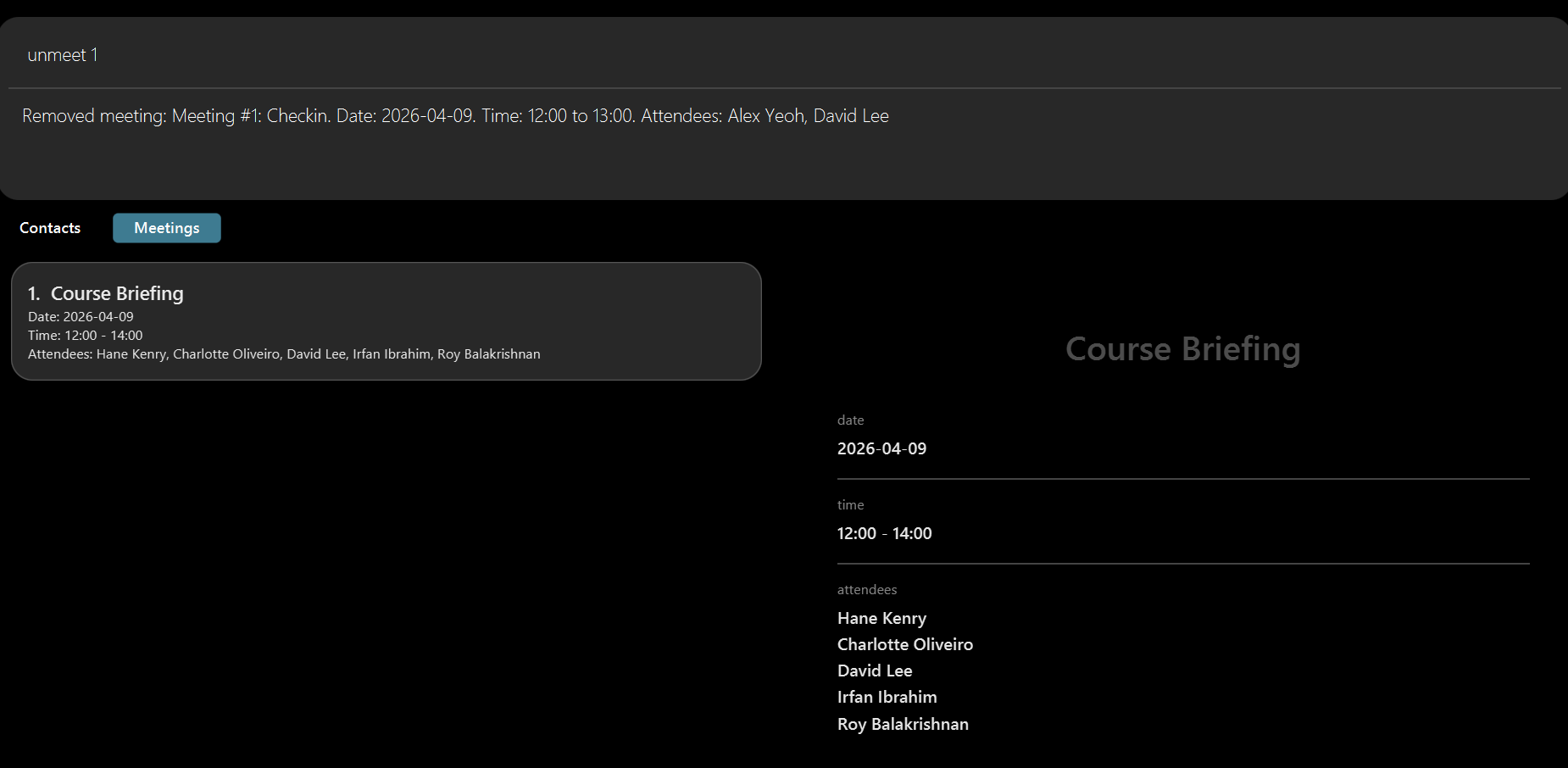
- After removal, remaining meetings are reindexed to stay contiguous (1, 2, 3, …).
Caution:
Removal is permanent. There is no undo.
Examples:
- Remove the 1st scheduled meeting:
unmeet 1Outcome: The 1st meeting is deleted from the meeting list. All subsequent meetings shift up by one index.
Deleting a contact : delete
Permanently removes a contact from CampusLink.
Use this when someone is no longer relevant to your studies — for example, a contact from a module you have completed. The contact is identified by their position number in the currently displayed list.
Format: delete INDEX
Arguments:
| Argument | Description |
|---|---|
INDEX |
The number shown next to the contact in the list. Must be a positive whole number (1, 2, 3, …). |
- If the deleted contact appears in any meeting attendees list, they are removed from those meetings automatically.
- If a meeting has no attendees left after removal, that meeting is deleted automatically.
- Remaining meetings are reindexed to stay contiguous (1, 2, 3, …), so there are no blank meeting numbers.
Caution:
Deletion is permanent. There is no undo. If you are unsure, consider using find first to confirm you have the right contact before deleting.
Examples:
- Delete the 2nd contact currently shown:
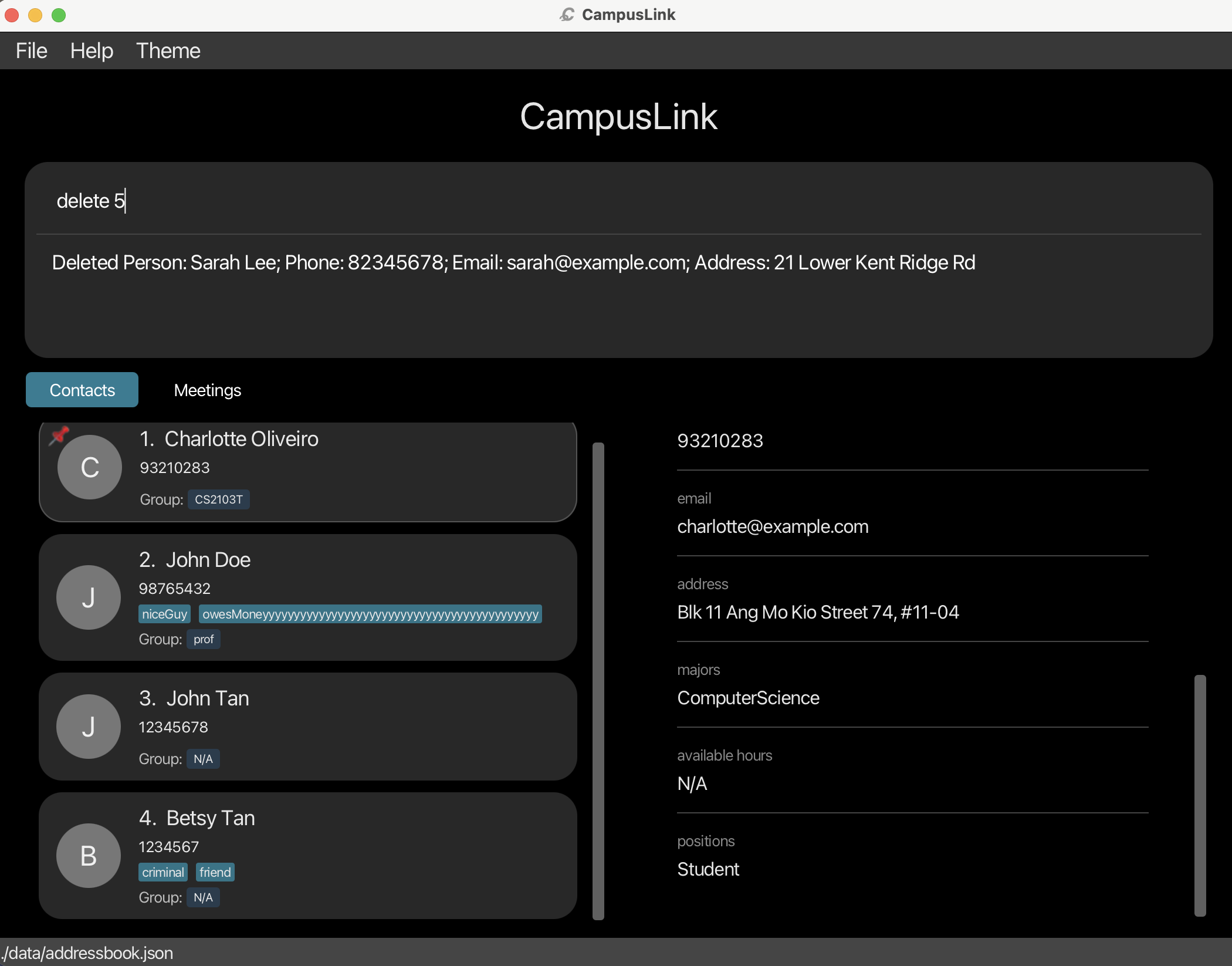
delete 2Outcome: The 2nd contact in the displayed list is permanently removed.
- Find a specific person, then delete them:
find n/Betsy
delete 1
Outcome: Searches for “Betsy”, then deletes the 1st result (the first contact named Betsy).
Pinning a contact : pin
Keeps an important contact permanently at the top of your list.
Use this to bookmark your most frequently contacted people — professors you are emailing regularly, or project teammates you need to reach quickly. Running the same command again on a pinned contact will unpin them.
Format: pin INDEX
Arguments:
| Argument | Description |
|---|---|
INDEX |
The number shown next to the contact in the list. Must be a positive whole number (1, 2, 3, …). |
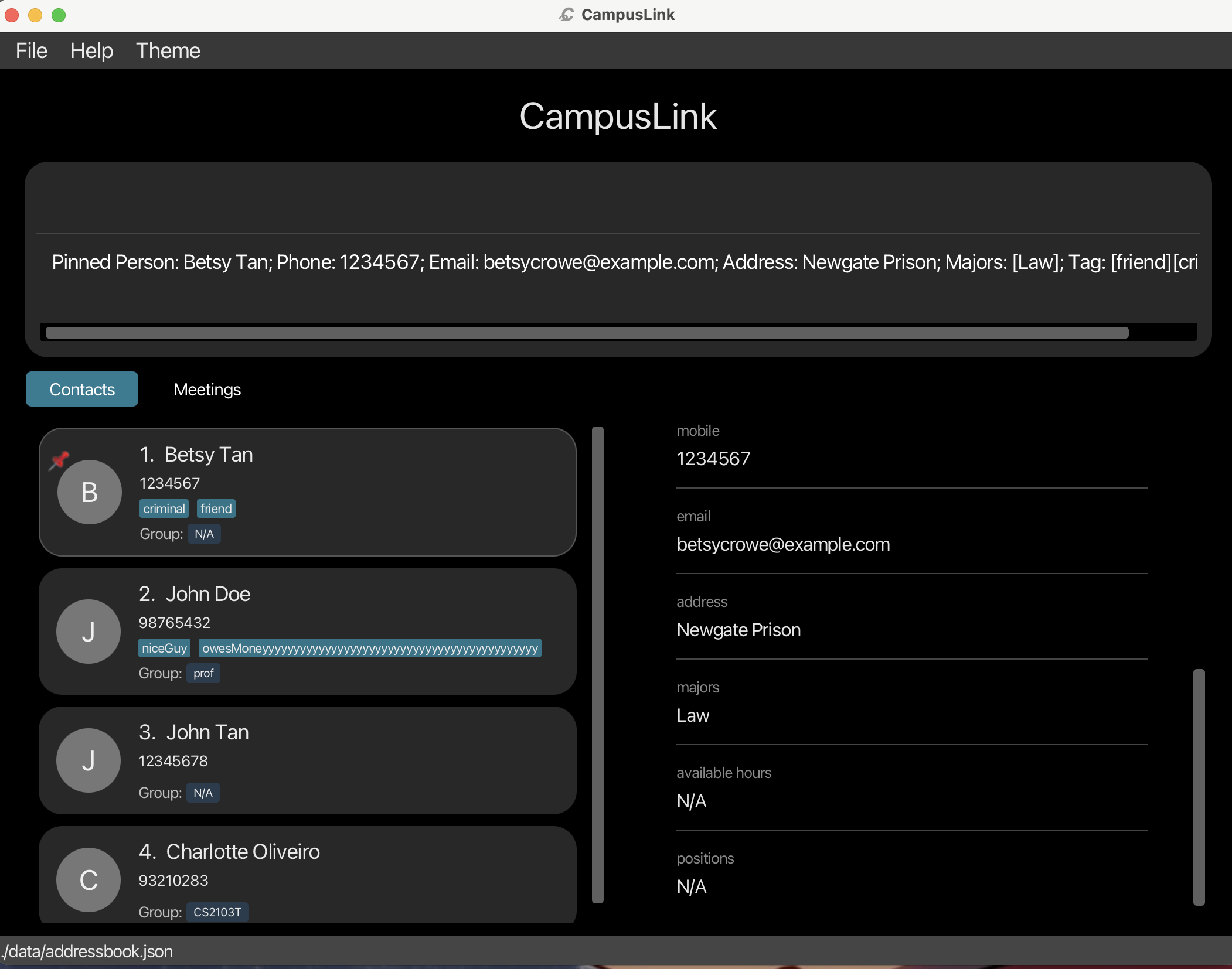
- A pinned contact moves to the top of the list and shows a 📌 icon.
- Running
pin INDEXon an already-pinned contact unpins them and returns them to their normal position. - A maximum of 3 contacts can be pinned at a time. Attempting to pin a 4th will show an error.
- Pin status is saved automatically and persists when you close and reopen the app.
Examples:
- Pin the 1st contact:
pin 1Outcome: The 1st contact moves to the top of the list with a 📌 icon.
- Unpin a previously pinned contact (who is now showing as contact 1 at the top):
pin 1Outcome: The 📌 icon is removed and the contact returns to their normal position in the list.
Sorting contacts : sort
Reorders the contact list by a field of your choice.
Use this to quickly browse your contacts in alphabetical order, or to surface recently added contacts at the top. Pinned contacts always stay at the very top regardless of sort order, with the sort applied to everyone else below them.
Format: sort CONDITION ORDER
Arguments:
| Argument | Values | Description |
|---|---|---|
CONDITION |
firstname |
Sorts by the first word of each contact’s name (e.g. “Alice” in “Alice Tan”). |
lastname |
Sorts by the last word of each contact’s name (e.g. “Tan” in “Alice Tan”, or “Madonna” if that is the full name). | |
recent |
Sorts by the order contacts were added or imported. | |
ORDER |
a or ASC
|
Ascending order (A → Z for names; oldest first for recent). |
d or DESC
|
Descending order (Z → A for names; newest first for recent). |
- The sort is case-insensitive.
- Sorting is a display preference only — it does not modify the saved data and resets when you restart the app.
Examples:
- Sort everyone alphabetically by first name (A to Z):
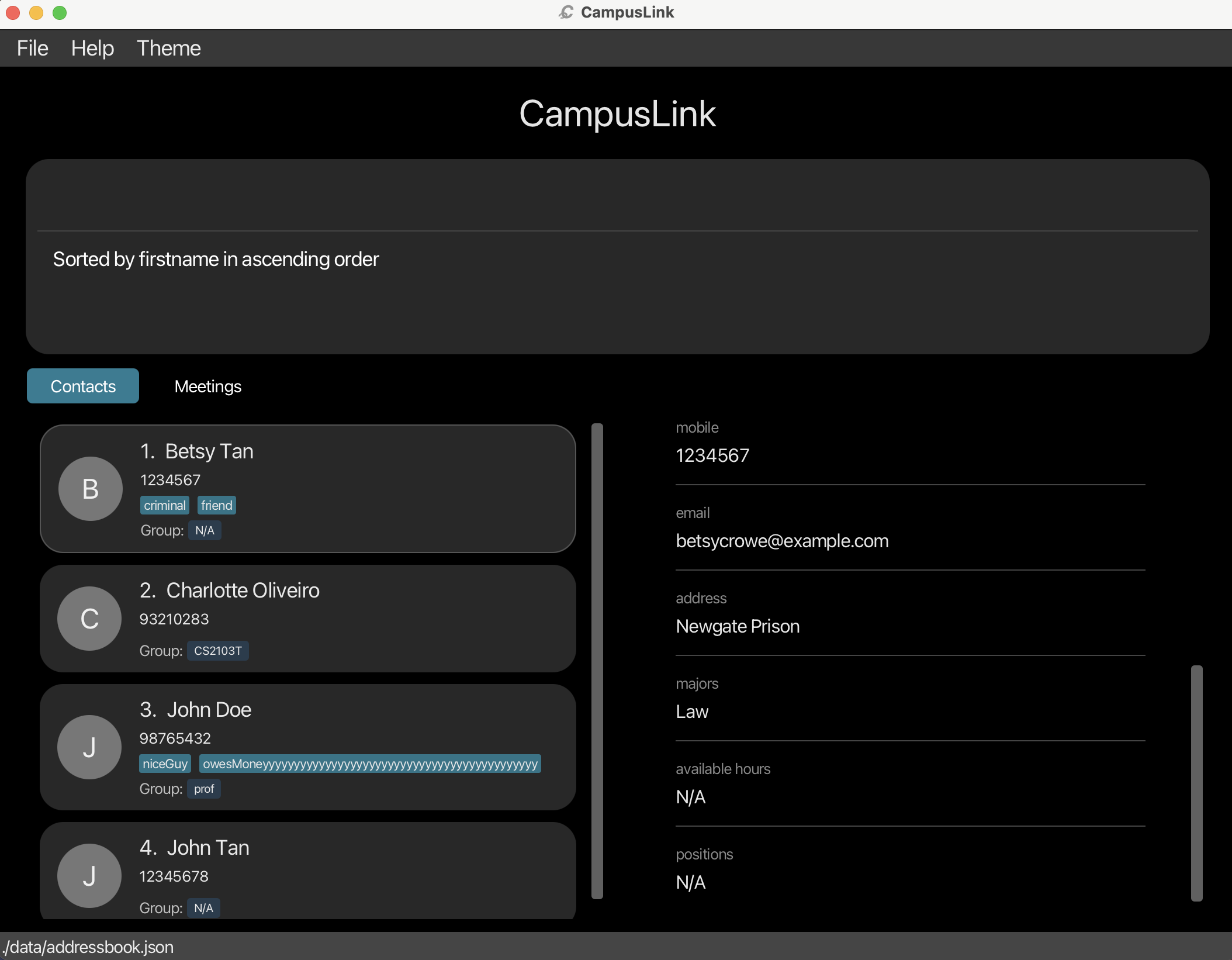
sort firstname aOutcome: The list reorders so contacts starting with A appear first, Z last.
- Sort by last name in reverse order (Z to A):
sort lastname DESCOutcome: Contacts with surnames starting with Z appear first.
- Show newest additions first:
sort recent dOutcome: The most recently added or imported contacts appear at the top.
Setting a profile picture : pic
Attaches a photo to a contact so you can recognize them at a glance.
Use this to add a face to a name — useful when your contact list grows large or when you want to quickly identify someone on campus. Running the command opens a file picker where you can choose an image from your computer.
Format: pic INDEX
Arguments:
| Argument | Description |
|---|---|
INDEX |
The number shown next to the contact in the list. Must be a positive whole number (1, 2, 3, …). |
- Supported image formats: PNG, JPG, JPEG, GIF, BMP.
- If no picture has been set yet, a 📷 button appears on the contact card — clicking it also opens the file picker.
- If a picture already exists, clicking on the image opens the file picker to replace it.
- The picture is saved automatically and will appear every time you reopen the app.
Examples:
- Open the file picker for the 1st contact:
pic 1Outcome: A file picker window opens. Select an image file and click Open — the photo will appear on the contact’s card.
- Replace the photo of the 3rd contact:
pic 3Outcome: A file picker opens. Choose a new image to replace the existing one.
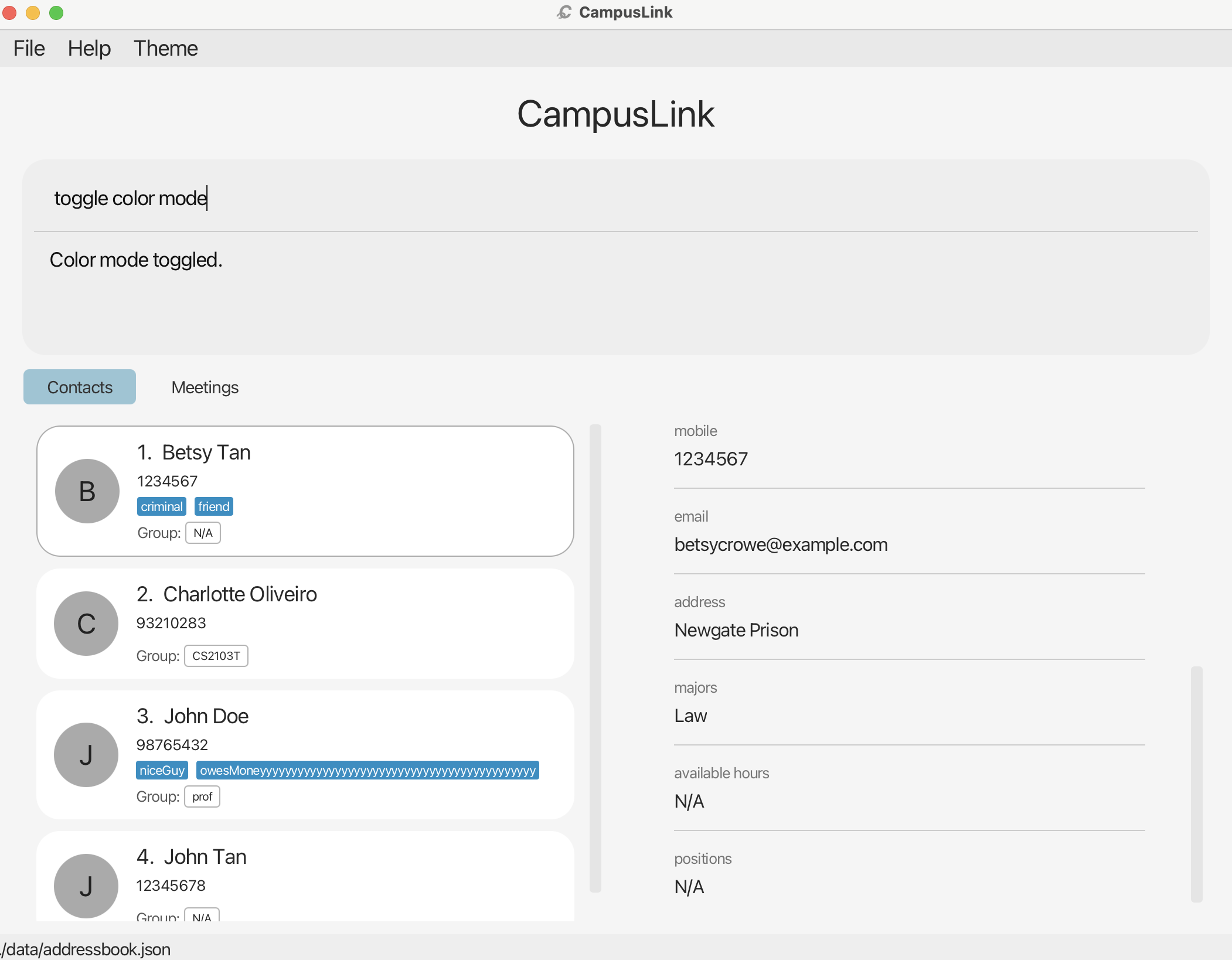
Toggling dark / light mode : toggle color mode
Switches the app’s color theme between dark mode and light mode.
Use this to make CampusLink more comfortable to read depending on your environment — dark mode for low-light settings, light mode for bright rooms. You can also click the ☀ / 🌙 button at the top-right corner of the window to do the same thing.
Format: toggle color mode
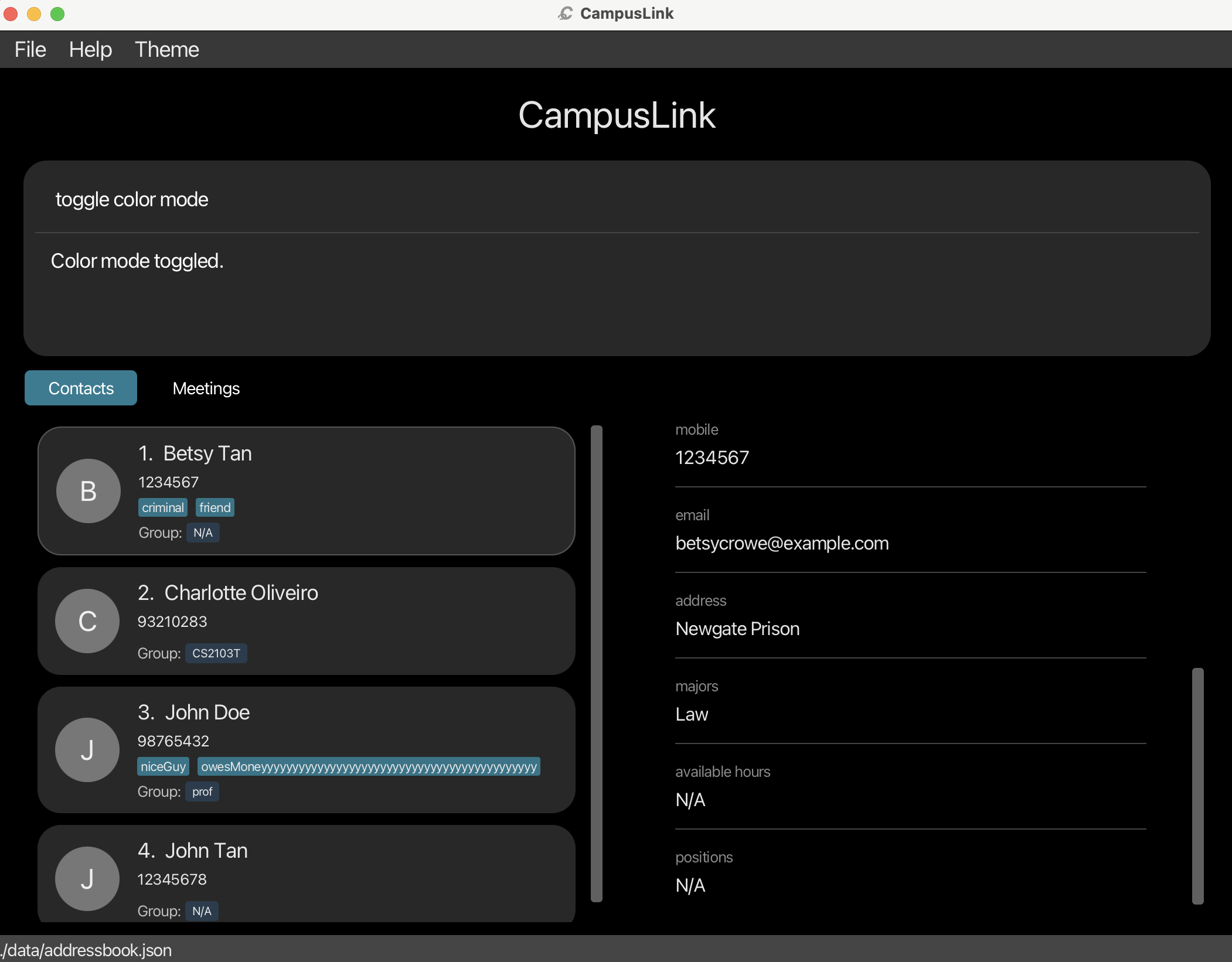
What happens: The entire app switches color theme instantly. Your preference is saved and applied the next time you open CampusLink.
Clearing all contacts : clear
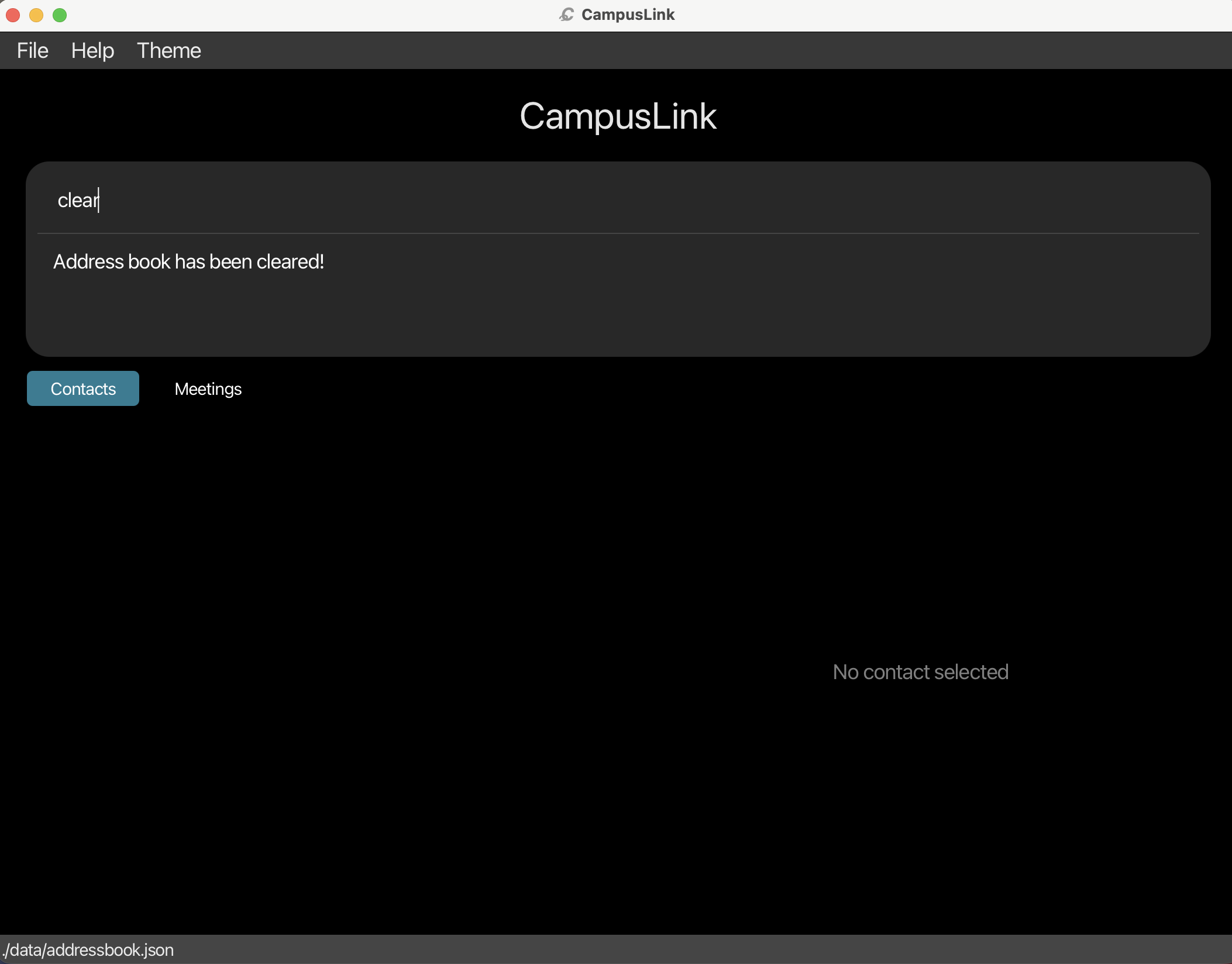
Deletes every contact in CampusLink at once.
Use this when you want to start completely fresh — for example, at the beginning of a new semester. This removes all contacts from the app permanently.
Format: clear
Caution:
This action is permanent and cannot be undone. All contacts will be lost. Consider using export to save a backup first if you may need the data later.
What happens: Every contact and every meeting is deleted. Both lists become empty. No data can be recovered after this command.
Setting a password : setpassword
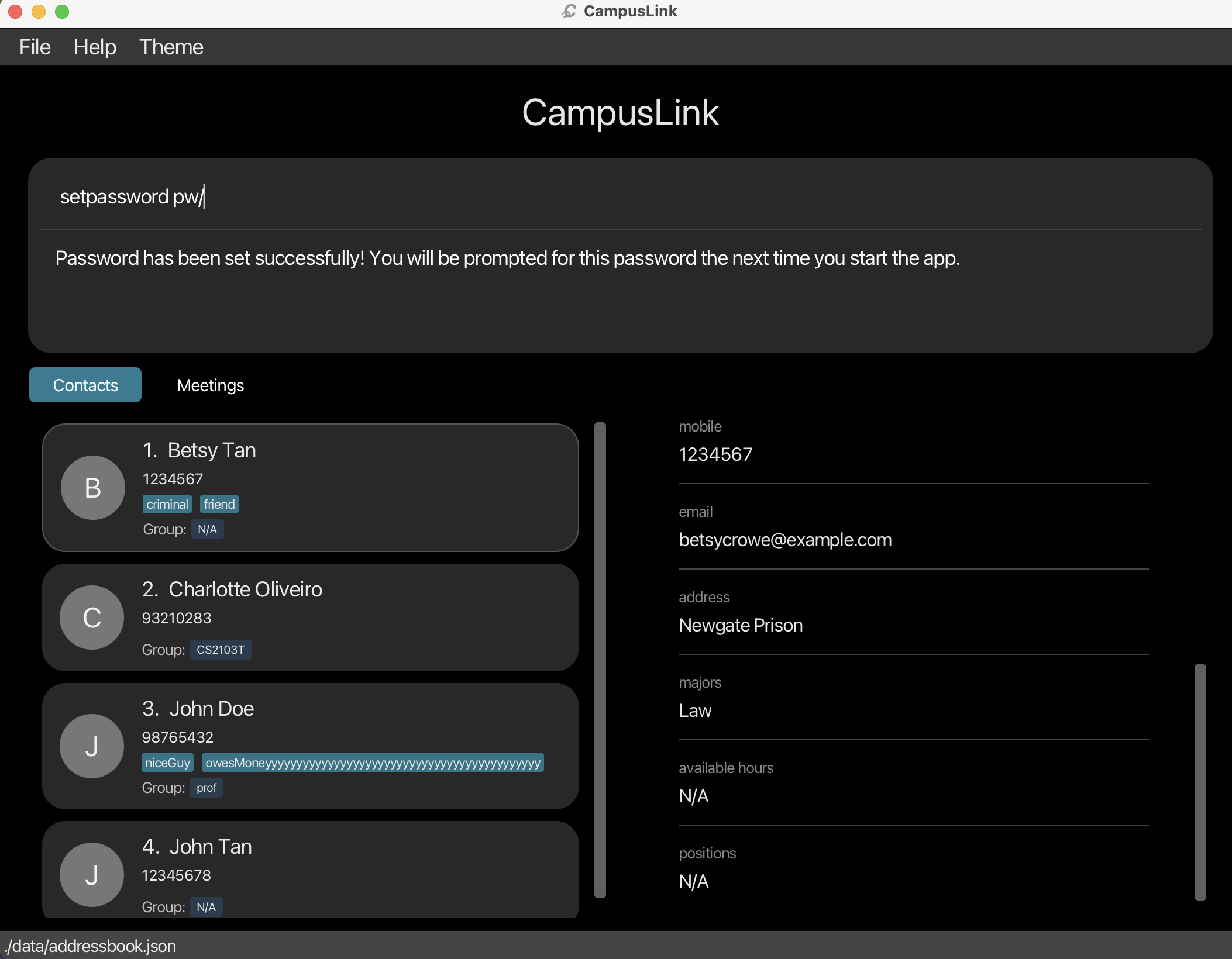
Locks CampusLink behind a password so only you can access your contacts.
Use this if you store sensitive contact information and want to prevent others from viewing it. Once set, every time you open CampusLink you will be asked to enter the password before the app loads. After 3 incorrect attempts, all contacts are permanently erased as a security measure.
Format: setpassword pw/PASSWORD
Arguments:
| Argument | Prefix | Description |
|---|---|---|
| Password | pw/ |
The password you want to set. Must not be empty or consist of spaces only. |
- If a password is already set, this command replaces it with the new one.
- The password is stored as a SHA-256 hash — your actual password text is never saved anywhere, making it secure.
Caution:
If you enter the wrong password 3 times on startup, all contacts will be permanently erased and password protection will be removed. There is no recovery mechanism. Consider noting your password somewhere safe.
Examples:
- Set a password:
setpassword pw/mySecret123Outcome: The next time you open CampusLink, you will be prompted to enter
mySecret123before the app loads.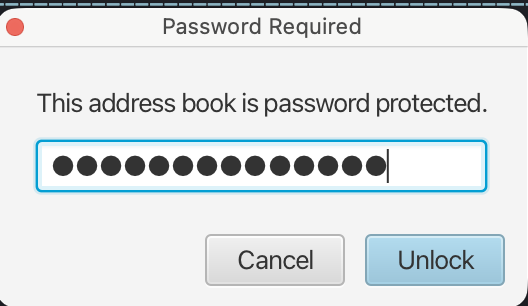
Removing password protection : removepassword
Disables the password requirement so CampusLink opens without asking for a password.
Use this if you no longer need to lock the app — for example, if you are the only person using your computer.
Format: removepassword
What happens: Password protection is turned off. CampusLink will open directly without a password prompt on the next launch.
- If no password is currently set, a message is shown and no changes are made.
Exporting contacts : export
Saves all your contacts to a file on your computer.
Use this to create a backup of your contacts, or to transfer them to another computer. The exported file is saved in JSON format and can be imported back into CampusLink later using the import command.
Format: export fp/FILE_PATH
Arguments:
| Argument | Prefix | Description |
|---|---|---|
| File path | fp/ |
The location and name of the file to save (e.g. backup.json or data/contacts_backup.json). |
- If the file already exists at that path, it will be overwritten.
- The export includes all contacts, regardless of any active search filter.
Examples:
- Export all contacts to a file called
backup.jsonin the same folder as the app:export fp/backup.jsonOutcome: A file named
backup.jsonis created in the current folder containing all your contacts. - Export to a specific folder:
export fp/data/team_contacts.jsonOutcome: A file named
team_contacts.jsonis created inside thedatafolder.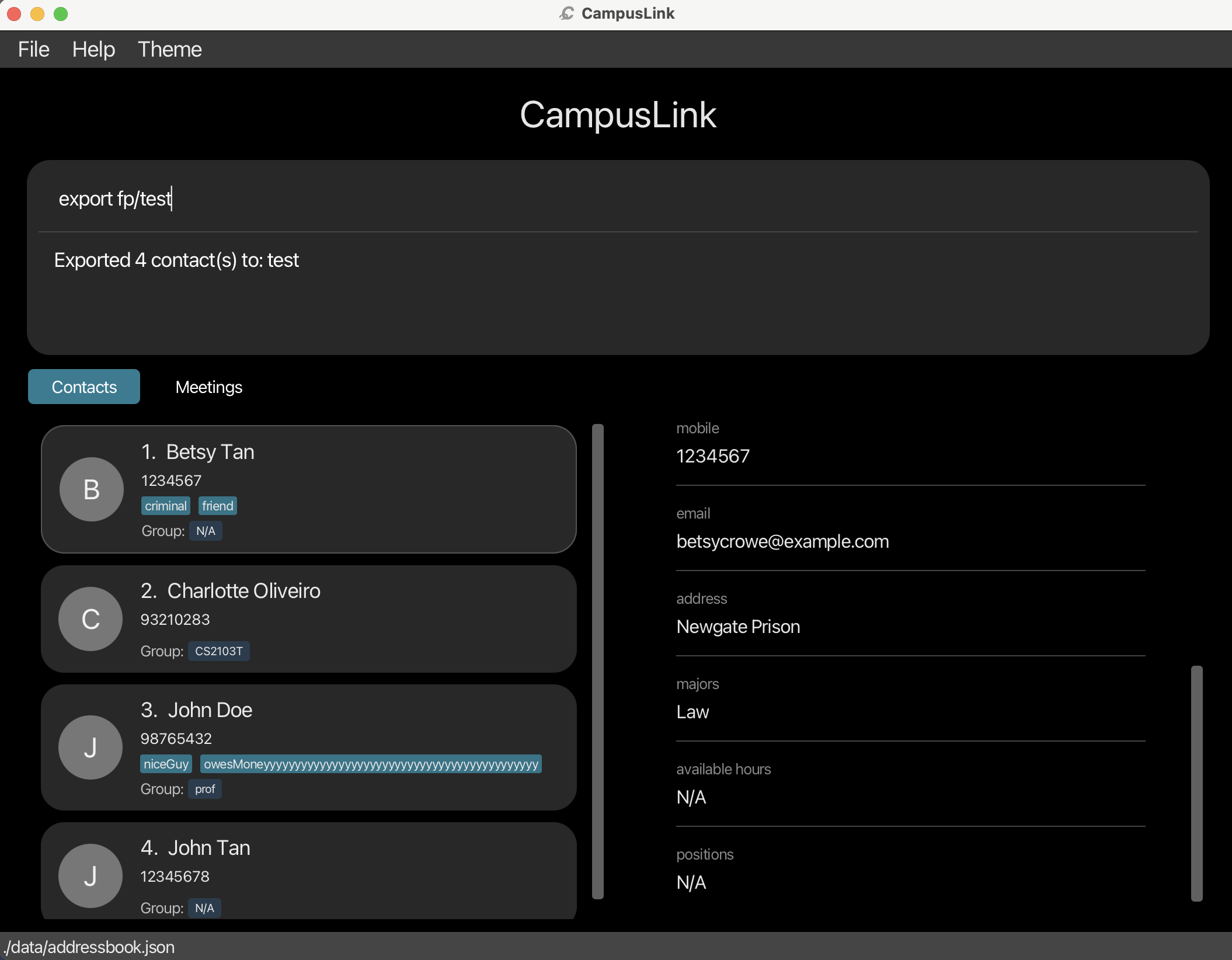
Importing contacts : import
Loads contacts from a file into CampusLink.
Use this to restore a backup or to bring in contacts from another computer. The import only adds contacts that do not already exist — your current contacts are never overwritten or removed.
Format: import fp/FILE_PATH
Arguments:
| Argument | Prefix | Description |
|---|---|---|
| File path | fp/ |
The path to a .json file previously exported from CampusLink. |
- The import is additive — existing contacts are kept as-is.
- If an imported contact shares the same name (case-insensitive), phone number (exact), or email (case-insensitive) as an existing contact, it is skipped (not added again).
- Newly imported contacts are added to the top of the list, preserving their relative order from the file.
- After the command, the result message tells you how many contacts were added and how many were skipped.
Tip:
Use export on one computer and import on another to transfer your contacts easily.
Examples:
- Import contacts from a backup file:
import fp/backup.jsonOutcome: All contacts in
backup.jsonthat are not already in your list are added. A message shows how many were added and how many were skipped. - Import from a specific folder:
import fp/data/team_contacts.jsonOutcome: Contacts from
team_contacts.jsoninside thedatafolder are merged into your contact list.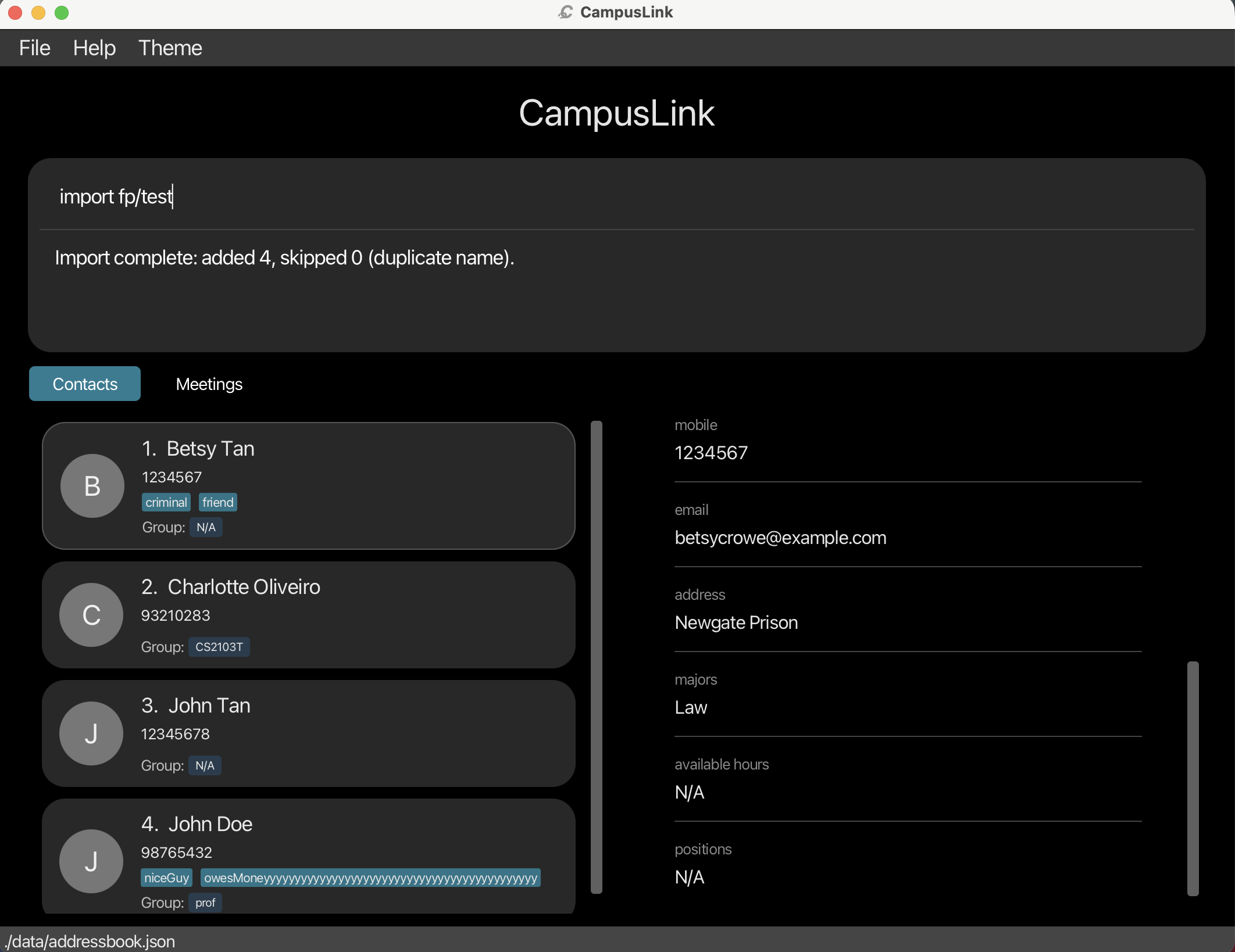
Setting a follow-up reminder : followup
Attaches a reminder note to a contact so you do not forget to follow up with them.
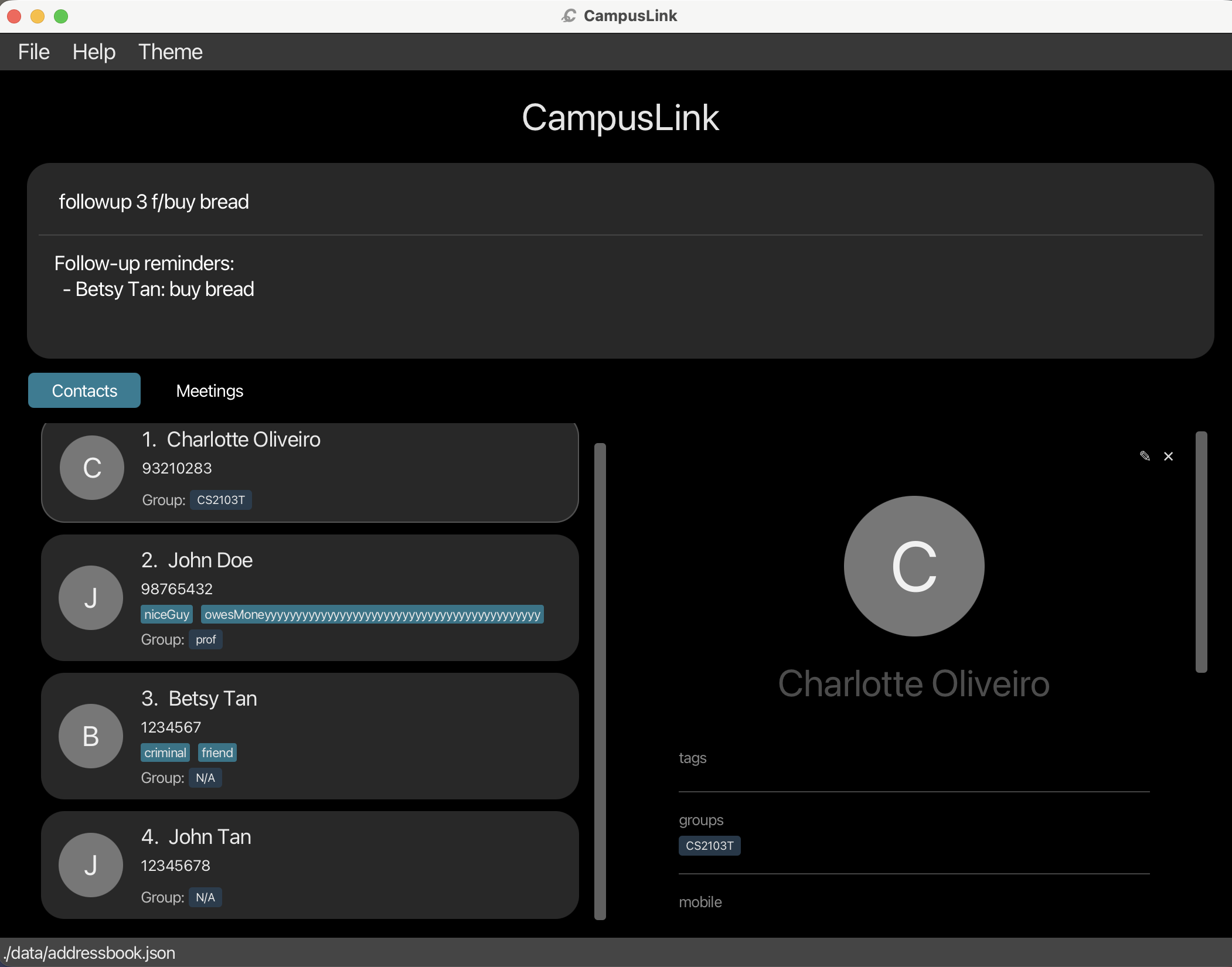
Use this when you need to remember to send someone a message, share files, or discuss something later. Every time you open CampusLink, all contacts with active reminders are shown in the result panel so you can see what needs your attention.
Format: followup INDEX f/NOTE
Arguments:
| Argument | Prefix | Description |
|---|---|---|
| Index | — | The number shown next to the contact in the list. Must be a positive whole number (1, 2, 3, …). |
| Note | f/ |
The reminder message. Must not be blank or start with a space. |
- If a reminder already exists on that contact, it is replaced by the new note.
- Reminders are shown automatically in the result display every time the app starts.
-
Active filter is preserved on success. After a successful
followup, the contact list continues to show only the contacts that matched the previousfindfilter (if any). The filter is not cleared.
Note:
followup preserves the active find filter, while edit clears it. If you run edit and then want to continue working within a filtered view, re-run your find command.
Examples:
- Add a reminder to the 1st contact:
followup 1 f/Email about internship by FridayOutcome: The reminder “Email about internship by Friday” is attached to the 1st contact. It will appear in the result panel the next time you open the app.
- Update the reminder on the 3rd contact:
followup 3 f/Discuss project deadline next weekOutcome: Any existing reminder on the 3rd contact is replaced with the new note.
Clearing a follow-up reminder : clearfollowup
Removes the reminder note from a contact once you have finished the task.
Use this after completing whatever you needed to follow up on. The contact will no longer appear in the startup reminder list.
Format: clearfollowup INDEX
Arguments:
| Argument | Description |
|---|---|
INDEX |
The number shown next to the contact in the list. Must be a positive whole number (1, 2, 3, …). |
- If the contact has no active reminder, an error message is shown and nothing changes.
-
Active filter is preserved on success. After a successful
clearfollowup, the contact list continues to show only the contacts that matched the previousfindfilter (if any). The filter is not cleared.
Examples:
- Clear the reminder from the 1st contact:
clearfollowup 1Outcome: The follow-up note is removed from the 1st contact. They will no longer appear in the startup reminder list.
Exiting the app : exit
Closes CampusLink.
All data is already saved automatically, so you do not need to do anything before exiting.
Format: exit
What happens: The application window closes. All your contacts and settings are preserved for the next time you open CampusLink.
Saving the data
CampusLink saves your data automatically to the hard disk after every command that makes a change. There is no need to save manually.
Editing the data file
Your contacts are saved as a JSON file at [JAR file location]/data/addressbook.json. Advanced users are welcome to edit this file directly.
Caution:
If the data file is edited incorrectly, CampusLink may discard all data and start with an empty contact list, or exhibit unexpected behavior even if the file appears valid. Keep a backup before making any direct edits.
Security limitations of password protection
Important — password protection is application-level only.
CampusLink’s password protects you from casual access through the app itself, but it does not encrypt the underlying files. Anyone with direct access to your file system can bypass or reset the password without ever opening CampusLink:
-
Bypassing the password: The password hash is stored in
preferences.jsonin the app’s home folder. Deleting or editing this file removes password protection entirely — no password will be required on the next launch. -
Reading contact data directly: All contacts are stored as plain JSON in
data/addressbook.json. Anyone who can read the file can read your contacts, regardless of whether a password is set. -
Corrupting or wiping data: Deleting or truncating
data/addressbook.jsondestroys all contacts. CampusLink will start with an empty list on next launch and will not warn you that data was lost externally.
What this means: CampusLink’s password is a convenience lock, not a security boundary. If you store sensitive contact information, you should protect the entire folder at the operating system level — for example, using BitLocker (Windows), FileVault (macOS), or equivalent filesystem-level encryption. Do not rely on the in-app password alone as a substitute for OS-level access control.
FAQ
Q: How do I transfer my data to another computer?
A: On your current computer, run export fp/backup.json to save all contacts to a file. Copy backup.json to the other computer, then run import fp/backup.json in CampusLink there. Alternatively, you can manually copy the data file at [JAR file location]/data/addressbook.json to the same location on the other computer.
Q: Can I undo a mistake if I deleted the wrong contact?
A: Currently, there is no built-in undo command. We highly recommend generating a backup file regularly using the export command before making mass changes (e.g., clear). If a mistake happens, you can easily restore your contacts using the import command.
Q: How do available hours (h/) work when scheduling a meeting (meet)?
A: When you specify available hours for a contact (e.g., h/0900-1800), the meet command ensures that the contact is only included if the meeting falls strictly within their availability window. If a contact has no available hours set, they are considered “always available” by default.
Q: Why did my find command return contacts that aren’t exact matches?
A: CampusLink features Advanced Fuzzy Find! It is designed to tolerate minor typos or missing letters (like searching Jooh instead of John), ensuring you can still find the right contacts quickly even if you misspelled their name slightly.
Q: Do I need to save my data manually after making changes?
A: No. CampusLink automatically saves your modifications to your computer’s hard disk immediately after any command that alters your contacts. You do not need to look for a save button!
Q: What should I do if I forget my password?
A: For security purposes, there is no password recovery mechanism. If you forget your password, you must recreate your data by deleting the preferences.json (removes the password lock) and data/addressbook.json (removes the locked contacts) files in the application folder.
Known issues
-
Pressing Enter twice for templated commands: When you type a partial command word (e.g.
sort) and pressEnterto accept the autocomplete suggestion, the command field is filled with a template (e.g.sort firstname a). Edit the placeholders and pressEnteronce to execute. The firstEnteronly applies the template; it does not execute the command. -
When using multiple screens, if you move the application to a secondary screen, and later switch to using only the primary screen, the GUI will open off-screen. The remedy is to delete the
preferences.jsonfile created by the application before running the application again. -
If you minimize the Help Window and then run the
helpcommand (or use theHelpmenu, or the keyboard shortcutF1) again, the original Help Window will remain minimized, and no new Help Window will appear. The remedy is to manually restore the minimized Help Window. -
If you forget your password, there is currently no password recovery mechanism. You can reset the app by deleting
preferences.json(removes password) anddata/addressbook.json(removes all contacts) from the app’s home folder. -
Profile pictures may not load after moving files: Profile picture paths are stored as absolute file paths. If the image file is moved, renamed, or deleted — or if the app’s data file is transferred to another computer — the picture will no longer display. You can reassign the picture using
pic INDEX.
Glossary
-
Alphanumeric: Contains only letters (A-Z) and numbers (0-9). No special characters (like
@,#, or-). -
Case-insensitive: The system treats uppercase and lowercase letters the same. For example, finding
Alexwill also matchalexorALEX. - CLI (Command Line Interface): A text-based way of interacting with a program, where you type commands manually instead of clicking buttons.
-
Directory / File Path: The folder location on your computer where files are saved (e.g.,
data/team_contacts.json). - Fuzzy Search: A forgiving search tool that tries to find matches even if there are minor typos or slight misspellings in your query.
- GUI (Graphical User Interface): The visual part of the app you interact with on your screen, featuring windows, lists, and layout panels.
-
Index: The positive number appearing next to a contact or meeting in the displayed list. It is used to target a specific item (e.g.,
delete 1targets the first person). - JSON: A standard file format used to store and transfer data. Your imported and exported contacts are saved in this format.
-
Parameter: Additional information you supply to a command to tell it exactly what to interact with (e.g., the
1indelete 1). -
Prefix / Flag: A short code (like
n/for name, or-cfor compulsory) placed before a parameter to tell the app which category of information you are providing.
Command summary
| Action | Format, Examples |
|---|---|
| Add |
add n/NAME p/PHONE_NUMBER e/EMAIL a/ADDRESS [t/TAG]…[g/GROUP]… [po/POSITION]… [m/MAJOR]… [h/AVAILABLE_HOURS]e.g., add n/James Ho p/22224444 e/james@example.com a/123 Clementi Rd t/friend t/colleague
|
| Clear | clear |
| Delete |
delete INDEXe.g., delete 3
|
| Edit |
edit [FLAG] INDEX [n/NAME] [p/PHONE] [e/EMAIL] [a/ADDRESS] [t/TAG]…[g/GROUP]… [po/POSITION]… [m/MAJOR]… [h/AVAILABLE_HOURS]e.g., edit -r 2 n/James Lee e/jameslee@example.com
|
| Export |
export fp/FILE_PATHe.g., export fp/backup.json
|
| Find |
find [-c/-o] PREFIX/KEYWORD… (at least one required)e.g., find n/James Jake
|
| Meet |
meet DESCRIPTION h/START-END [d/DATE] [n/NAME] [g/GROUP] [m/MAJOR] [po/POSITION] [t/TAG]…e.g., meet Project sync h/1200-1300 d/2026-04-01 n/Alex g/CS2103T t/project
|
| Unmeet |
unmeet INDEXe.g., unmeet 1
|
| Follow-up |
followup INDEX f/NOTEe.g., followup 1 f/Email about internship by Friday
|
| Clear Follow-up |
clearfollowup INDEXe.g., clearfollowup 1
|
| Import |
import fp/FILE_PATHe.g., import fp/backup.json
|
| List | list |
| Pin |
pin INDEXe.g., pin 1
|
| Sort |
sort CONDITION ORDERe.g., sort firstname a
|
| Help | help |
| Set Password |
setpassword pw/PASSWORDe.g., setpassword pw/mySecret123
|
| Remove Password | removepassword |
| Profile Picture |
pic INDEXe.g., pic 2
|
| Toggle Color Mode | toggle color mode |